User guide · Your family
Facts, dates and notes
Record births, marriages, occupations and other facts, enter dates as exactly or loosely as your evidence allows, and keep notes.
Edit a fact
- Open the person's profile and click Edit.
- Under Life, click the fact, for example Birth. The editor opens under it.
- Type in Date, Place or Description.
- Leave the field by pressing Tab or Enter, or by clicking elsewhere. The value is tidied and stored straight away, as one step you can undo.
Press Esc in a field to put back the stored value.
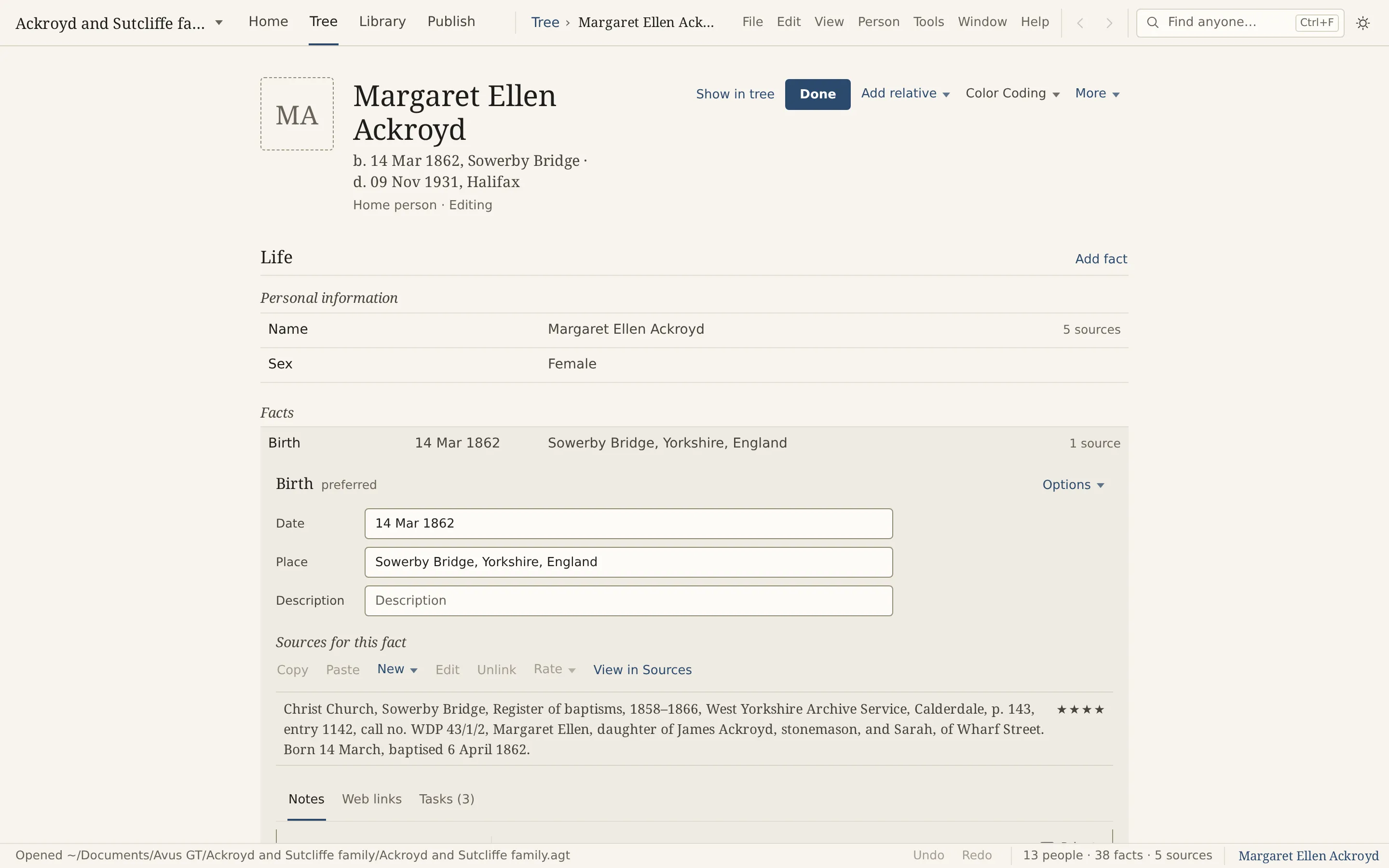
In edit mode, Life is split into Personal information (name and sex), Facts (the person's own facts) and Shared with … (facts that belong to a couple, such as Marriage).
Add a fact
- Open the profile and click Edit.
- Click Add fact, next to the Life heading.
- Type part of the fact's name in Search, or scroll the list.
- Select the fact and click OK, or double-click it.
- Fill in the date, place and description in the editor that opens.
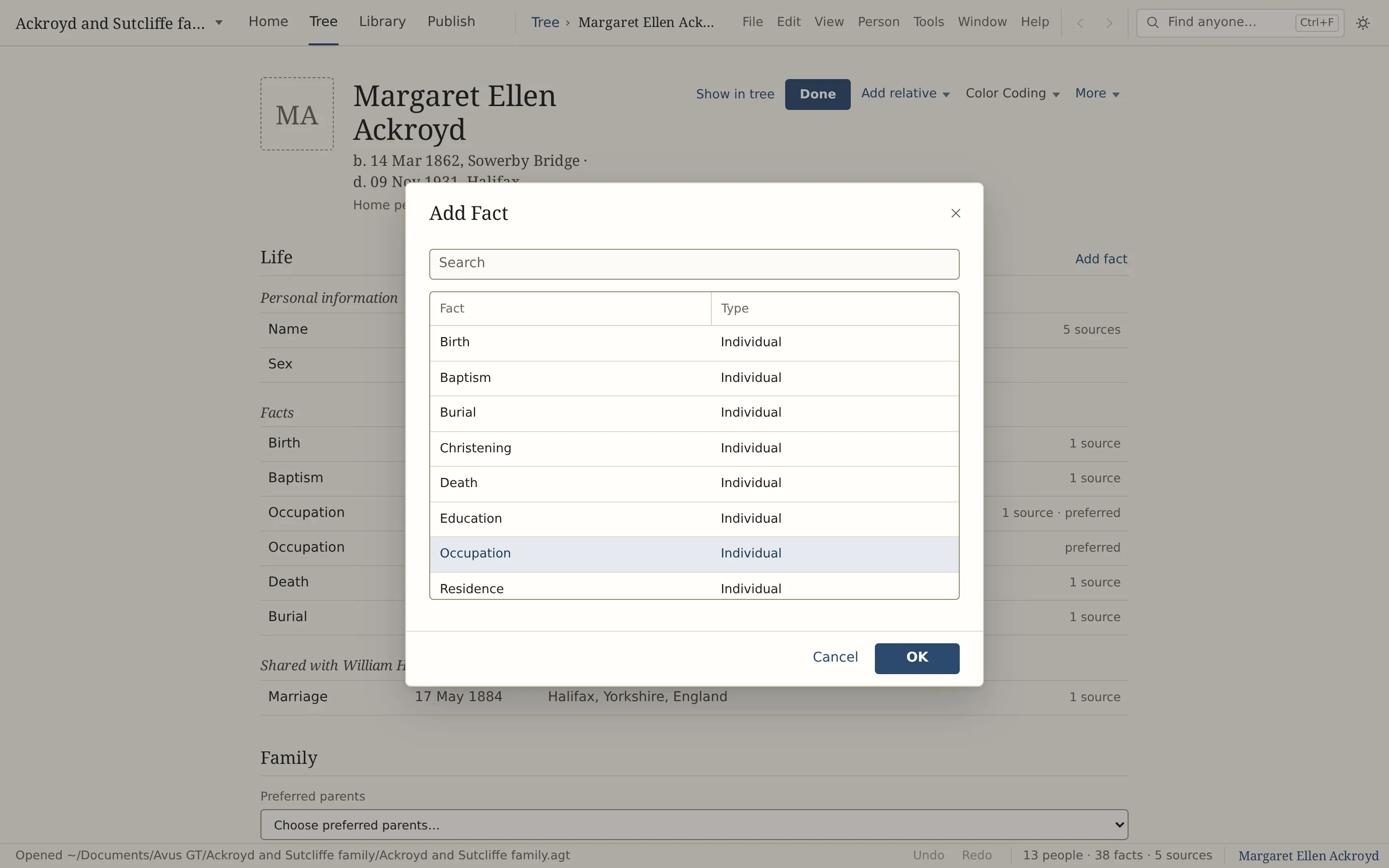
A Shared fact, such as Marriage, needs a spouse. Add the spouse first. To create your own fact types, choose Edit → Manage Facts….
Entering dates
Type a date the way you would write it. Avus GT reads it and stores a standard form. By default dates are shown as day, month, year, for example 04 Dec 1870.
| You type | Meaning |
|---|---|
4 Dec 1920, Dec 1920, 1870 | An exact day, a month, or a year |
abt 1870, about 1870, circa 1870 | About 1870 (shown as “Abt. 1870”) |
bef 1900, aft 1900 | Before or after 1900 |
bet 1930 and 1932 | Some time between the two (shown as “Bet. 1930–1932”) |
from 1901 to 1911 | A period, such as a residence |
est 1850, cal 1850 | Estimated or calculated |
4/12/20 | A date in numbers, read in the order set in Options (day first by default: 04 Dec 2020) |
To change how dates are shown or how numbers are read, see Dates, names and places options. Changing the display never changes the stored date.
Warnings about unlikely dates
If a date looks wrong for the person, for example a child born before a parent was old enough, a Check this date box lists the problems before anything is saved.
- Click Cancel (or press Esc) to save nothing and put the old date back.
- Click Save Anyway to keep the date. It is saved as one change you can undo.
The checks and their age limits are set in Tools → Options… → Warnings.
Entering places
Type places from the most specific to the least, separated by commas, such as
Sowerby Bridge, Yorkshire, England. When Check place names is on in Options,
Avus GT checks the country against its built-in list and tidies the place when you leave the field.
Places you type become place records you can manage in Places.
Preferred, alternate and private facts
You can record the same kind of fact more than once, for example two birth dates from different records. One is preferred and is used in the tree, charts and reports; the others are alternate.
- Open the fact in edit mode.
- Open its Options menu.
- Choose Preferred to make it the preferred fact, Private to mark it private, or Delete Fact to delete it.
Private facts are marked “private” on the profile. Reports, charts, books and GEDCOM export can leave them out. See Privacy, saving and backups.
Notes
- On the profile, click Add a note in the Notes section, or click Edit.
- Type in the note editor. The toolbar has bold, italic, underline, bulleted and numbered lists, and a preview.
- Choose whether it is a Person note or a Research note, and tick Private to keep it out of published output.
Facts, couples, sources, citations, media and places can carry notes too. Reports and GEDCOM files get the text without formatting.
Historical events
Click Show historical events on a profile to add dated historical events to the person's Life list, in italics. They are not personal facts. To add or change the events, choose Edit → Manage Historical Events….
Menus, labels and features of Avus GT may change in later versions.