User guide · Your family
People and profiles
Find people in the People list, read and edit their profiles, and add relatives.
The People list
The People list sits on the left of the Tree destination. It lists everyone as “Surname, Given” with their years. Click a name to select that person in the tree.
- Find a person: type part of a name. The ‹ and › buttons beside the box jump to the previous and next match.
- Index, Bookmarks and History switch between everyone, the people you bookmarked, and the people you visited in this session.
- Sort: Family, Given Name or Given Family Name.
- The … button holds Show birth year in index, Find in notes and facts too and Find Duplicate People….
- The panel button at the top hides or shows the list (Hide People list). In a narrow window the list opens over the tree instead.
The filter controls at the foot of the list are described in Search and saved filters.
The summary card
When you select someone in the tree, a summary card shows their dates, parents, spouse and children. Click any name on the card to move to that person. The card's buttons are:
- Open profile: open the person's full profile. Double-clicking a card in the tree, or pressing Enter on it, does the same.
- Quick edit: edit the name, sex, life events and family in a panel beside the tree.
- Add relative: add a father, mother, spouse, child or unrelated person.
- The … button: Edit Person…, Customize View…, Set As Home Person, Add Bookmark, Print and Delete Person….
A person's profile
The profile is a single page about one person. Open it from the summary card, from search, or by clicking a person's name almost anywhere in the app.
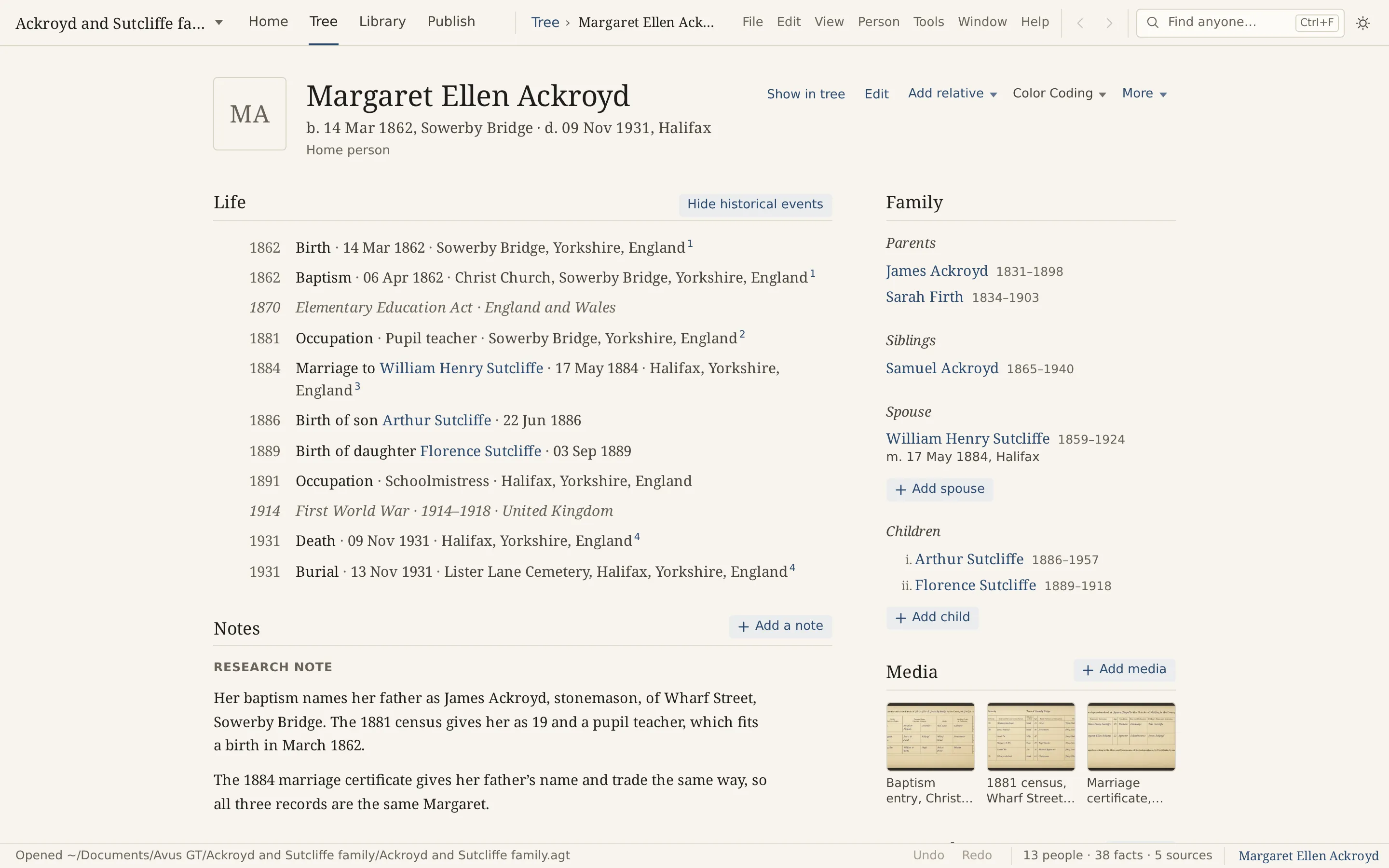
- Header
- The portrait, the name and a one-line summary such as “b. 14 Mar 1862, Sowerby Bridge”. It also says whether this is the home person, or how they are related to the home person.
- Life
- Facts in date order, including marriages and children's births. Alternate facts appear under the preferred one; private facts are marked “private”. Show historical events adds dated historical events to the list in italics.
- Notes, Sources
- The person's notes, and a numbered list of the sources cited for them and their facts.
- Family, Media, Research
- Parents, siblings, spouses and children (each name opens that profile); pictures and documents; and open research tasks and web links.
The buttons at the top right of the profile are:
- Show in tree: go back to the tree with this person selected.
- Edit: switch the page to edit mode. See Edit a person.
- Add relative: Add father…, Add mother…, Add parents…, Add spouse…, Add child… or Add unrelated person….
- Color Coding: colour this person or their line in the tree. See Colour coding.
- More: Bookmark, Set as home person, Edit person…, Edit relationship…, Set spouse order…, Show historical events, Manage historical events…, All research tasks…, Print… and Delete person….
Add a relative
- Open the person's profile, or select them in the tree.
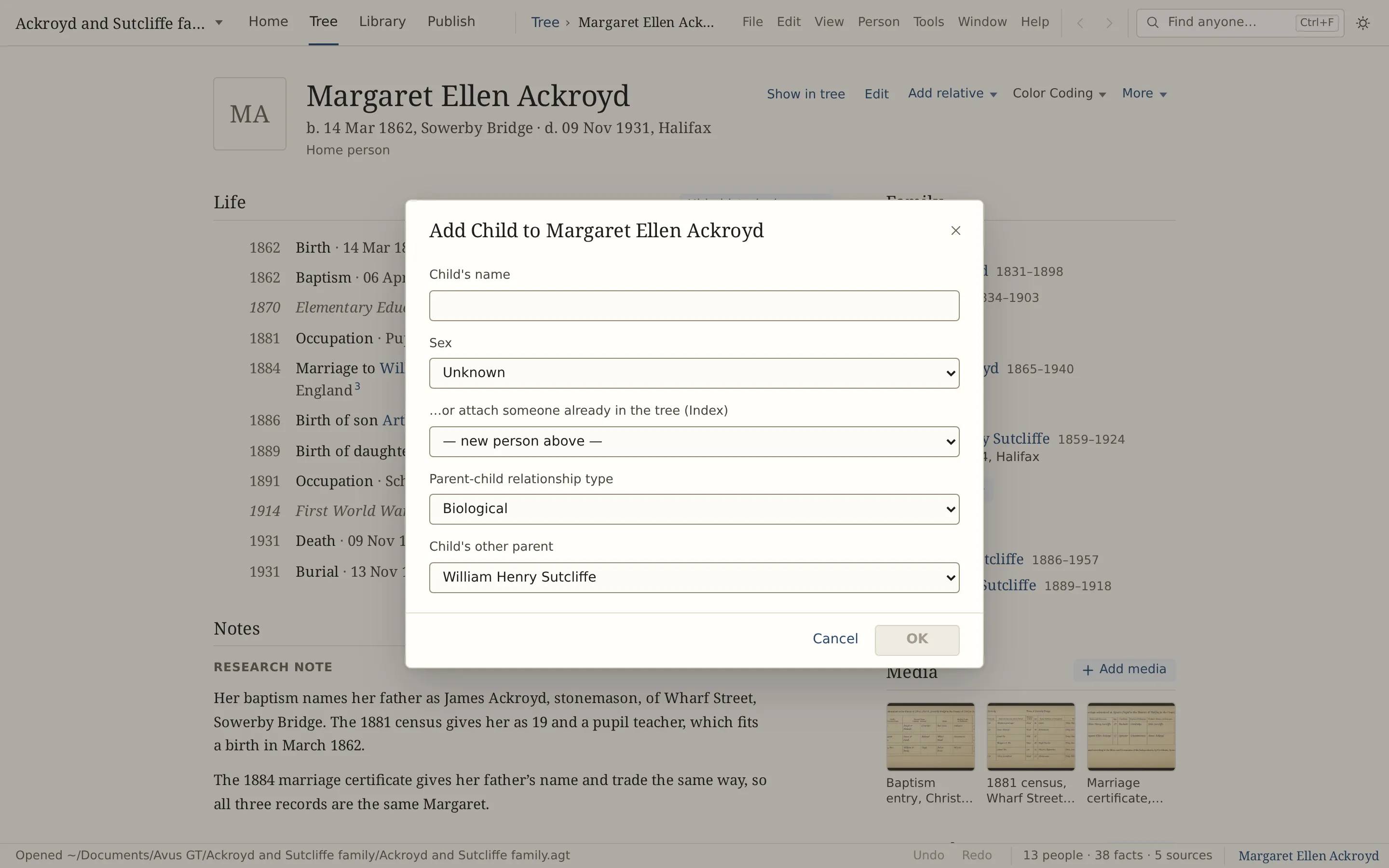
- Click Add relative and choose who to add, for example Add child….
- Type the new person's name and choose their Sex.
- If the relative is already in the tree, choose them from …or attach someone already in the tree (Index) instead of typing a name.
- For a parent or child, choose the Parent-child relationship type, such as Biological, Adopted, Step or Foster. For a child, also choose the Child's other parent.
- For a spouse, choose the Partnership status: married, partnered, divorced, annulled or ongoing.
- Click OK.
In the tree, dashed Add father and Add mother boxes appear where a parent is missing. Click one to add that parent. On the profile, the Family section has the same links.
Add parents… adds a second set of parents, such as adoptive parents, and keeps the existing ones. See Parents.
Add someone who isn't related yet
- Choose Person → Add Person…, or Add relative → Add unrelated person….
- Enter the Name (given surname). Everything else is optional: sex, birth and death dates and places, and a research note.
- Click OK. The whole entry is one step you can undo.
Edit a person
- On the profile, click Edit. The page switches to edit mode and the button becomes Done.
- Click a row under Life to edit it: the name, sex, or any fact. The editor opens under the row.
- Use the Family, Notes, Media and Research sections to change relationships, notes, pictures, tasks and web links.
- Click Done, or press Esc, to return to reading.
There is no Save button. Each field is stored when you leave it. Facts are covered in detail in Facts, dates and notes.
Edit → Edit Person… (Ctrl+F3) opens the same information in a dialog, with tabs for Facts, Notes, Media, Web Links and Tasks.
To change a name's details or add other names, edit the Name row, open its Options menu and choose Alternate Names and Privacy….
The home person
The home person is the person the tree centres on, usually you. Profiles and cards show how others are related to them. To set it, open the person's More menu and choose Set as home person, or click Change… beside Home person on the Home page. The house button in the tree's tool group goes back to the home person.
Bookmarks and history
Choose More → Bookmark on a profile, or Add Bookmark on the summary card, to keep someone handy. Bookmarks are listed under Bookmarks in the People list. History lists the people you visited in this session. View → Back and View → Forward (Ctrl+Alt+← and →) step through them.
Delete a person
- Open the person's profile and choose More → Delete person….
- Confirm. Their facts, notes, citations and media links are removed with them.
To bring them back, choose Edit → Undo (Ctrl+Z).
Find and merge duplicates
- Choose Person → Find Duplicates… (or Edit → Find Duplicate People…).
- Avus GT lists possible pairs: similar names with births within a year of each other.
- Click Merge… beside a pair to preview it. The preview says who is kept, how many facts, notes and citations move across, and any conflicts.
- Click Merge to merge, or Cancel. A merge can be undone.
Menus, labels and features of Avus GT may change in later versions.