User guide · Evidence and records
Sources and citations
Record where each fact came from, say how strong the evidence is, and keep your sources and repositories in order.
Sources, citations and repositories
- Source
- A record you consulted, entered once and reused: a book, a register, a collection or a document.
- Citation
- The specific place in that source where the evidence is, such as a volume and page. A citation is attached to one or more facts, or to the person as a whole.
- Repository
- Where a source is held: an archive, a library or a person.
Avus GT writes a reference note for each citation from the source and citation details, in a consistent footnote style. The profile's Sources section lists these notes, numbered to match the superscripts beside the facts.
Cite a source for a fact
- Open the person's profile.
- In the Sources section, click Add citation (or Cite a source if there are none yet).
- Choose what the citation is for: The person as a whole (Name) or one of the person's facts.
- The Add Source Citation dialog opens on Guided entry. Follow its three
steps:
- Choose a source. Pick a source you entered before, or click Add source… to enter a new one.
- What did you consult? Choose the version you used.
- Which specific record or page? Name the person, the record's date and place, and enough detail to find the entry again.
- If you found it online, open Found online? Add the website and access date.
- Check the live preview of the reference note on the right, then click Save citation.
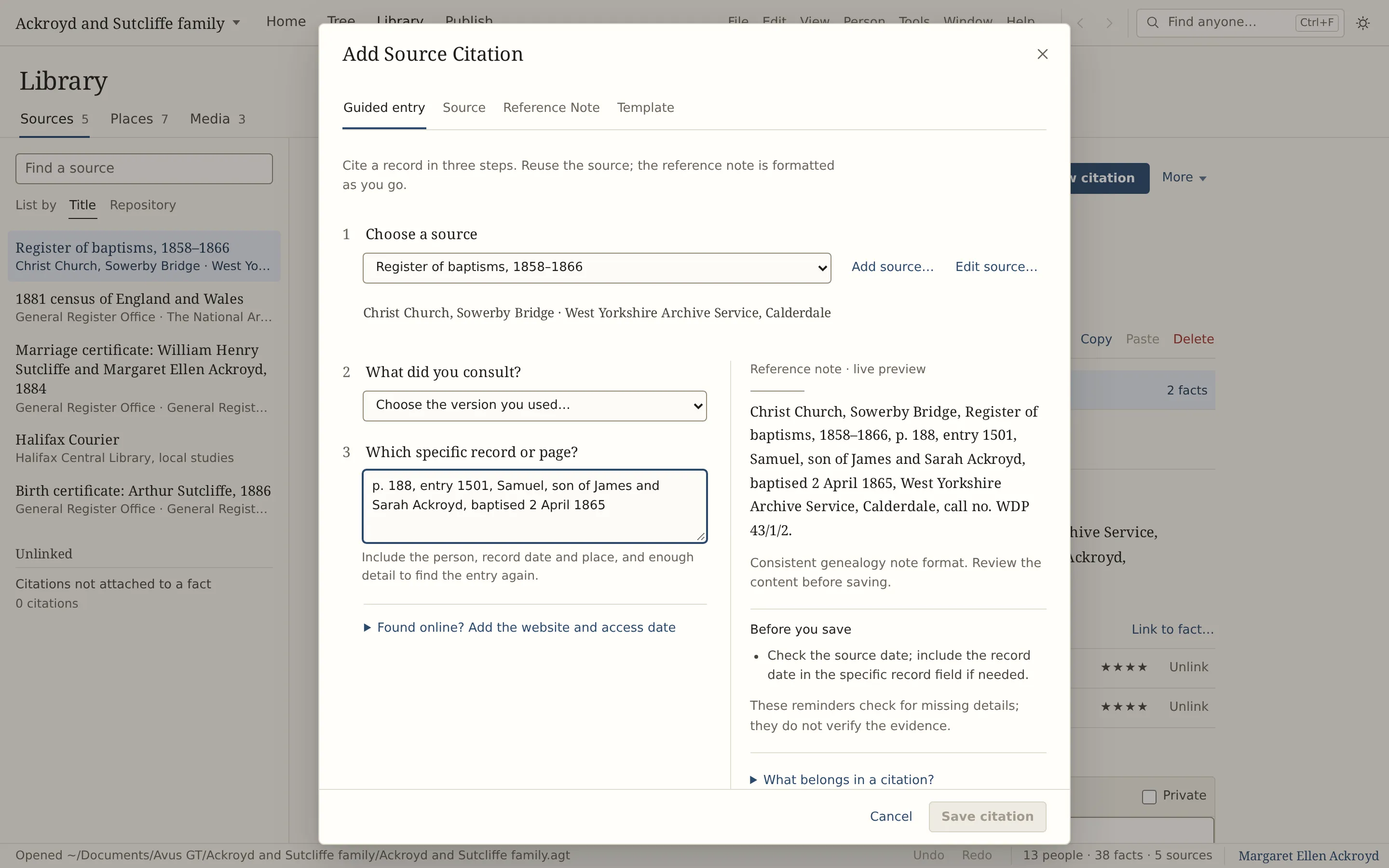
The Before you save reminders check for missing details. They do not check the evidence itself. The other tabs, Source, Reference Note and Template, show every field if you prefer to fill them in directly.
From a fact in edit mode
You can also cite from the fact itself. Click Edit on the profile, open a fact, and use the buttons under its sources:
- New: Add New Source Citation… or Use Existing Source Citation….
- Edit, Unlink and Rate for the selected citation.
- Copy and Paste: copy a citation from one fact and paste it on another.
- View in Sources: open the citation in Library › Sources.
Rate the evidence
Each link between a citation and a fact has its own rating, shown as stars:
- Not rated
- Questionable
- Secondary evidence
- Direct and primary evidence
To change it, click Rate under the fact's sources, or click the stars beside the fact in Library › Sources, and choose a rating.
Library › Sources
Click Library in the top bar, then Sources. The list on the left shows your sources. List by switches between Title and Repository, and Find a source filters the list (the ↓ and ↑ keys jump between matches).
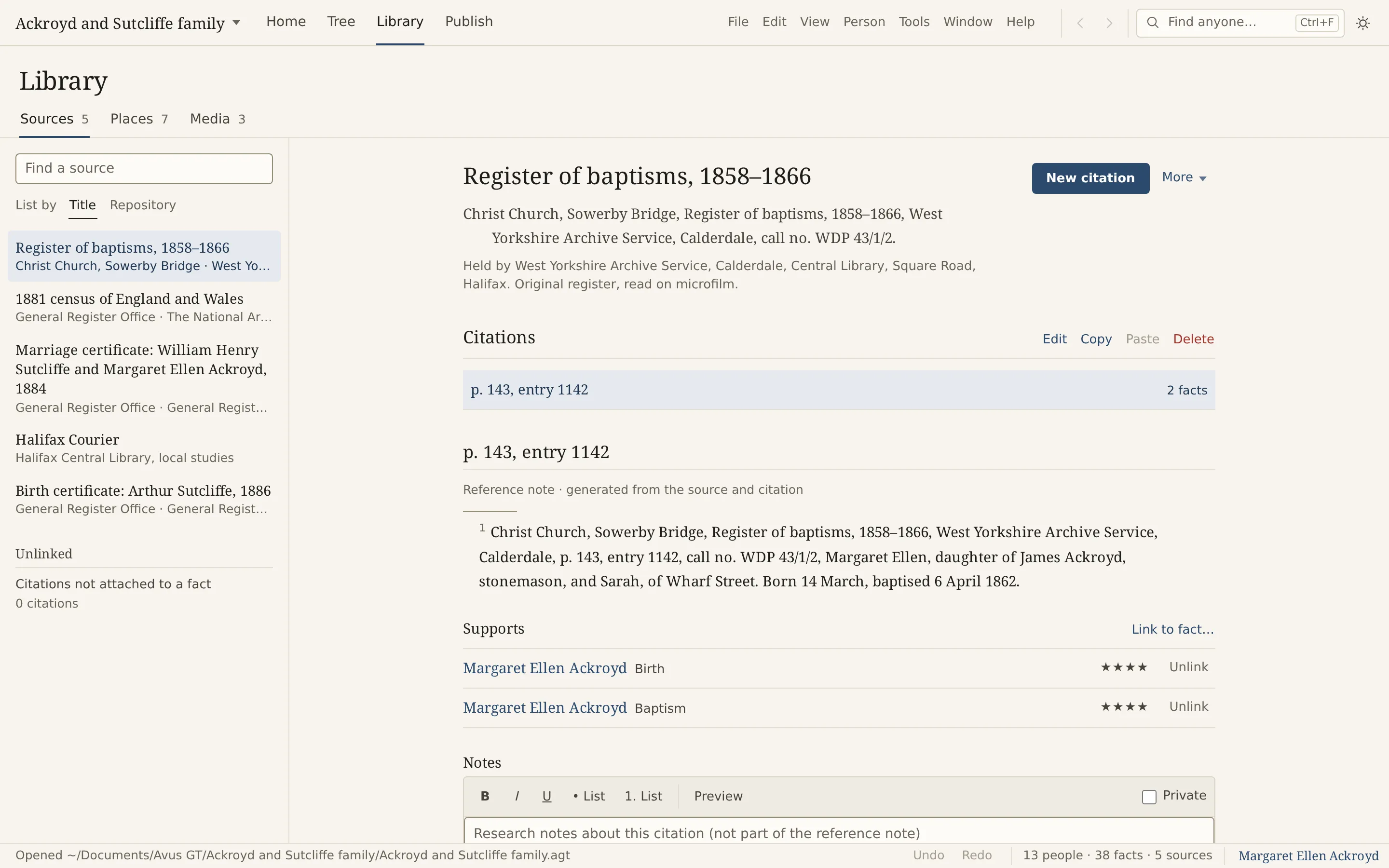
For the selected source you see:
- New citation, which opens the Add Source Citation dialog, and More, with New Source…, Edit Source and Template…, Manage Sources…, Manage Repositories… and Print.
- Citations, with Edit, Copy, Paste and Delete for the selected citation.
- The citation's reference note. Open Citation fields to change the citation detail, citation text, web address or the reference note wording. Reset brings back the generated wording.
- Supports: the facts the citation is attached to, each with its rating and an Unlink button. Link to fact… attaches it to another person or fact.
- Notes, Web links and tasks and Media for the citation.
Citations that are not attached to any fact are listed under Unlinked, below the sources.
Source templates
A template sets out the fields for a kind of source, such as a census or a parish register. To choose one, open More → Edit Source and Template… and pick it from Source template, or choose None to use no template. You can also add, edit and delete your own templates there.
Manage sources and repositories
- Edit → Manage Sources… lists every source with how often it is used. You can add, edit, replace one source with another, and delete sources that are no longer used.
- Edit → Manage Repositories… does the same for repositories, with their address, phone, email and notes.
A source that still has citations can't be deleted. Delete or move its citations first.
Menus, labels and features of Avus GT may change in later versions.