User guide · Start here
The window, interfaces and themes
Find your way around the window, switch between the Modern and Classic interfaces, and choose a theme.
The top bar
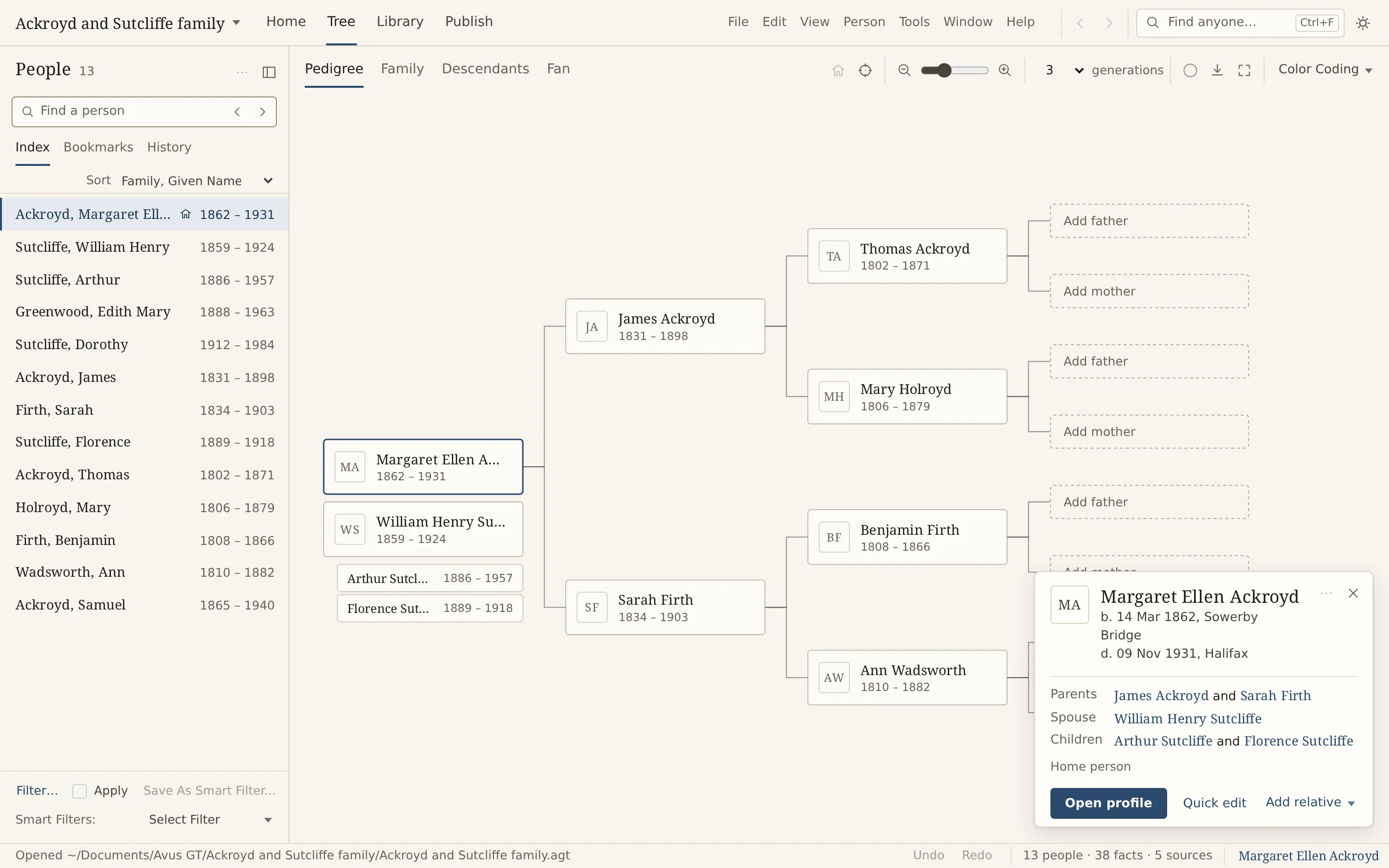
From left to right, the top bar holds:
- Tree name
- The name of the open tree. Click it for a menu with Tree Browser…, New Tree…, Open…, Backup…, Restore Backup… and Close Tree. “read only” appears beside it while living people's details are hidden.
- Destinations
- Home (tree summary), Tree (the family tree and the People list), Library (Sources, Places and Media) and Publish (charts, reports and books). In a narrow window they fold into one menu.
- Breadcrumb
- On a person's profile it reads Tree › name. Click Tree to go back to the tree.
- Menus
- File, Edit, View, Person, Tools, Window and Help. Every command in this guide can be reached from them. On a Mac the menus are in the system menu bar at the top of the screen.
- Back and Forward
- Step through the people you have visited, in the order you visited them.
- Find anyone…
- Search people, sources and places. See Find anyone.
- Theme button
- The sun or moon at the far right. It opens the list of themes.
The status bar along the bottom shows what just happened, Undo and Redo buttons, counts for the tree, and the selected person.
Ctrl+1 to Ctrl+6 also move between places: 1 Home, 2 Tree, 3 Places, 4 Media, 5 Sources and 6 Publish.
The command palette
The command palette finds a person, a destination or any menu command by typing part of its name.
- Press Ctrl+K, or choose View → Command Palette….
- Type a few letters, such as
gedcomor part of a person's name. - Use the arrow keys to pick an entry and press Enter. Press Esc to close it.
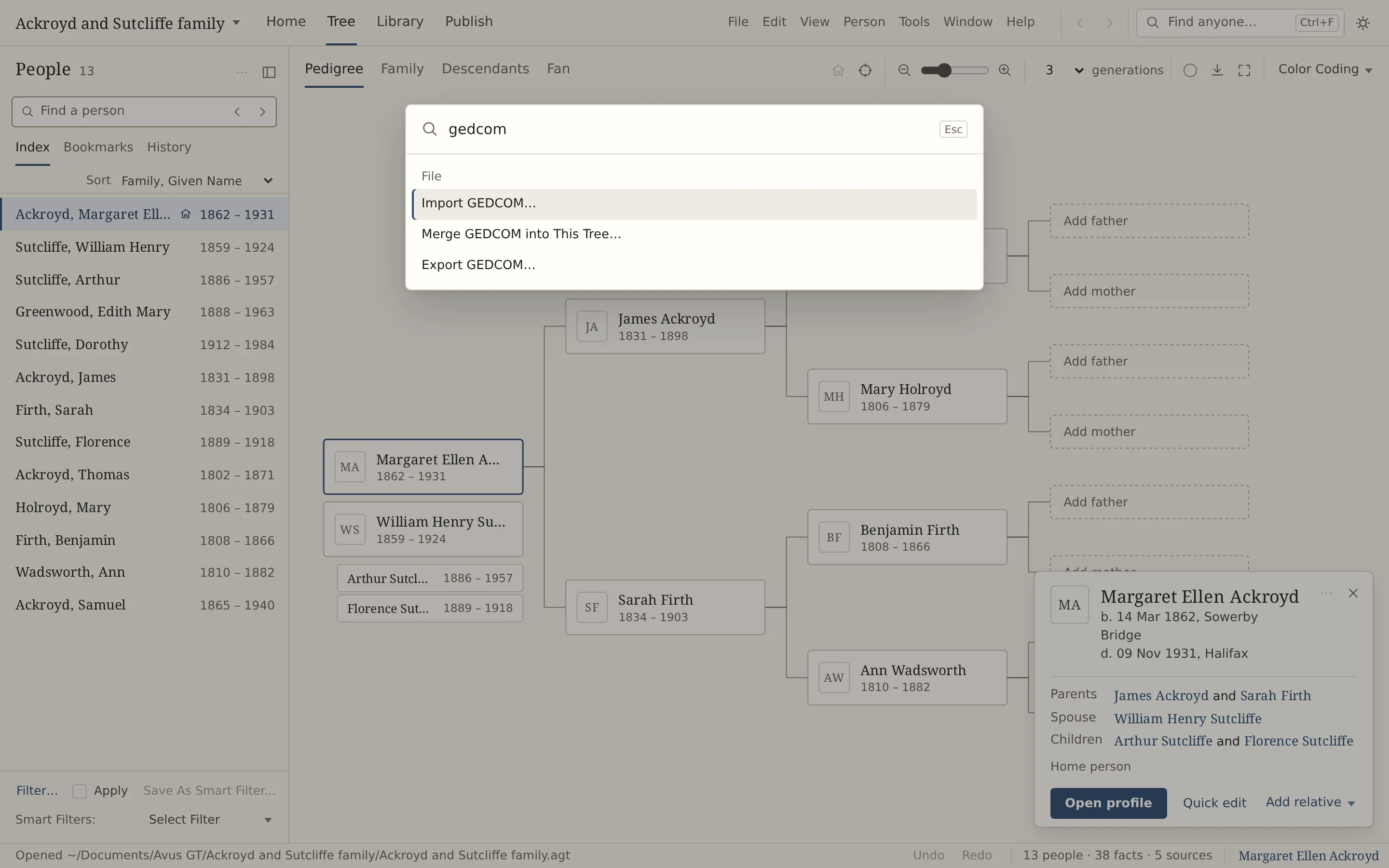
Choosing a person opens their profile. Commands that can't be used right now are marked “Unavailable”.
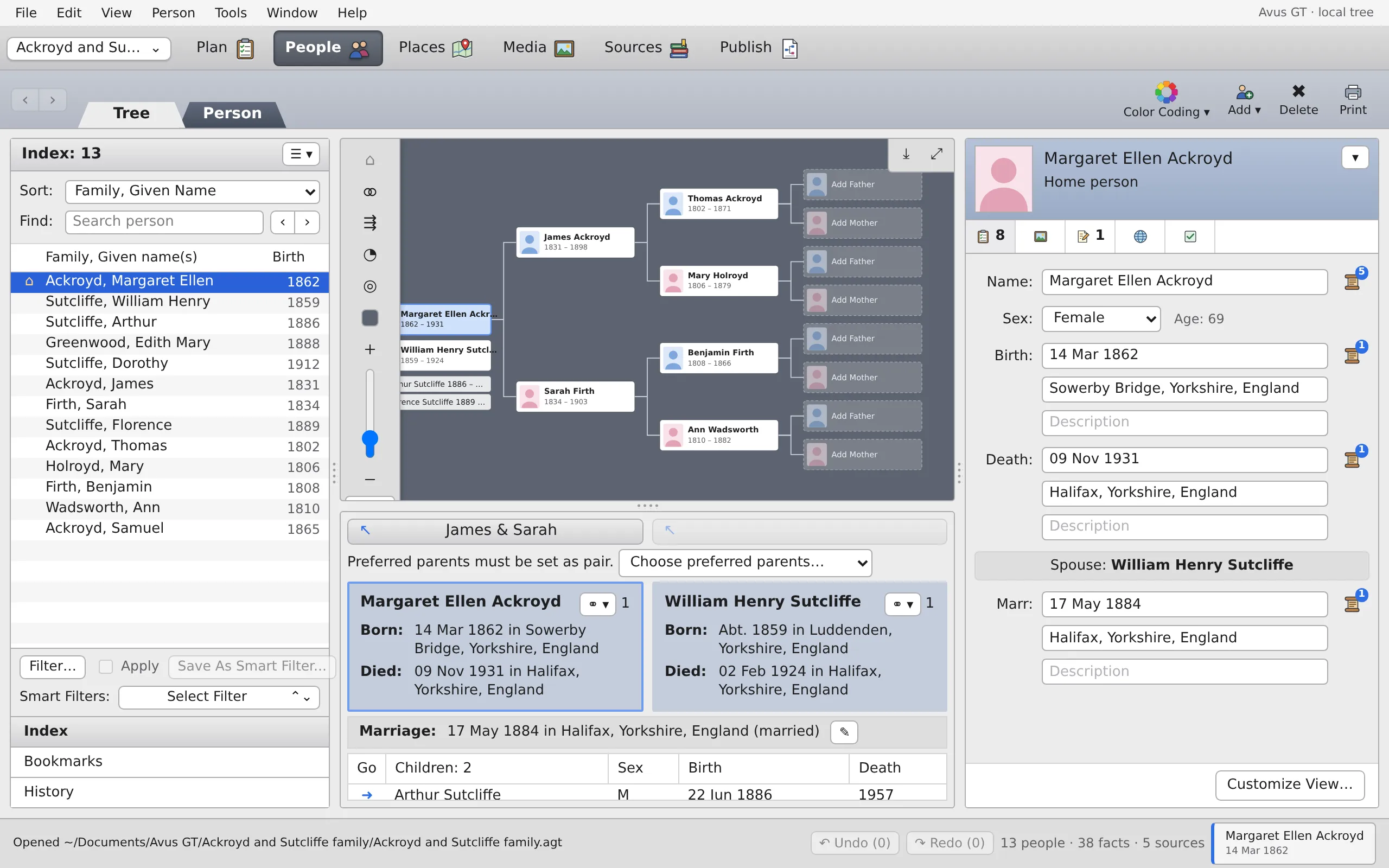
Switching between Modern and Classic
Both interfaces open the same trees and share the same editors, menus and undo history. Switching keeps the person you selected and the place you were working.
- Open the View menu.
- Choose Classic Interface or Modern Interface.
You can also choose the interface in Tools → Options… → General, under Appearance. A new installation starts in Modern. If you used an earlier test version, Avus GT keeps the interface you had.
Themes
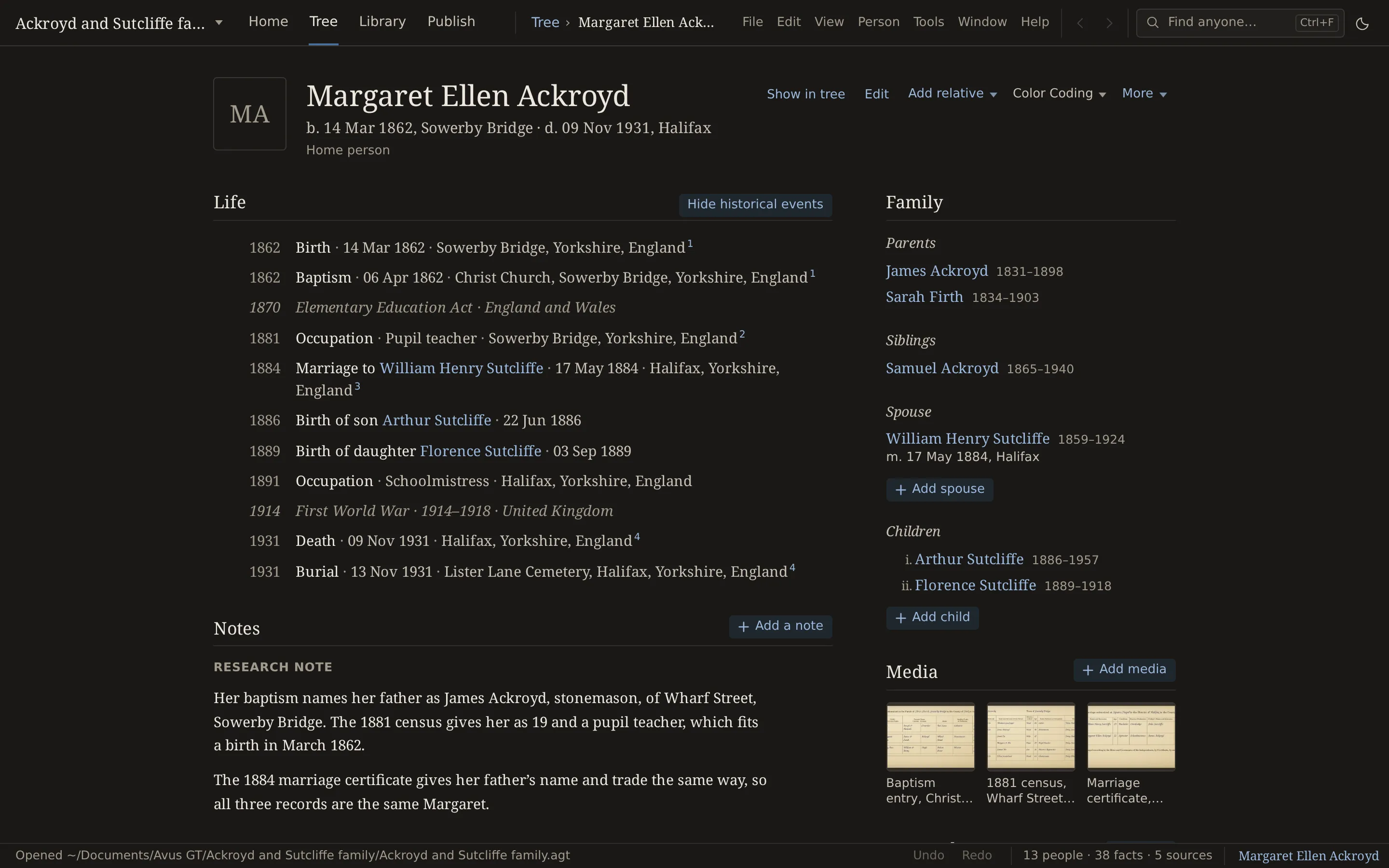
There are seven themes, and they apply to both interfaces, including the tree and the Places map: System, Light, Dark, Sepia, Slate, High Contrast Light and High Contrast Dark. System follows your computer's light or dark setting and changes when it does.
To change the theme, do one of the following:
- Click the theme button at the right of the top bar and pick a theme.
- Choose View → Theme and pick a theme.
- Choose Tools → Options… → General and set Theme.
Spacing
The Modern interface has two densities. View → Comfortable Spacing gives controls more room; View → Compact Spacing fits more rows on screen. The same choice is in Tools → Options… → General as Modern spacing.
Several windows
Window → New Window opens another window on the same tree. An edit in one window shows in the other. File → Open in New Window… opens a different tree in a new window. Window → Close Window (Ctrl+W) closes the current window.
Menus, labels and features of Avus GT may change in later versions.