User guide · Reference
Research tasks and tools
Keep a research to-do list, tag people, work out dates and relationships, and tidy the tree in bulk.
Research tasks
A task is a note of something still to do, such as “check the 1881 census”. A task can be about the whole tree or about a particular person, fact, source, citation, repository, media item or place.
- Click All tasks on the Home page, or choose Tools → Research Tasks & Tags…. The Research tasks page opens.
- Under Add a task, type the Description, choose a Priority and, if you like, a Due date.
- Click Add task.
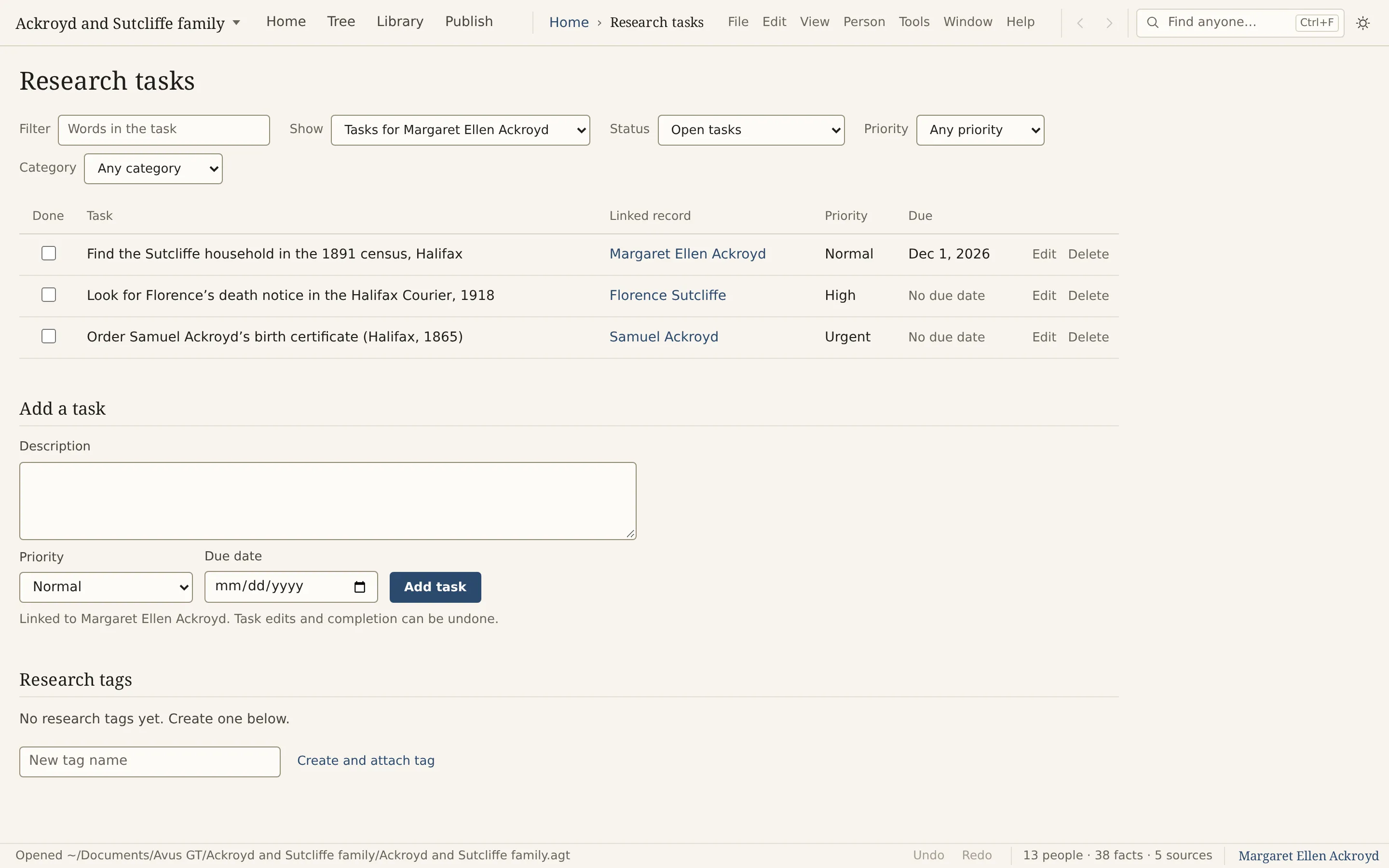
- Use Filter, Show, Status, Priority and Category to narrow the list.
- Tick Done to complete a task. Edit and Delete are on each row. Overdue dates appear in a warning colour.
- To add a task to one person, use Add a task or web link in the Research section of their profile.
The Task List report in Publish prints your tasks.
Research tags
Tags are short labels you attach to people, such as “needs sources”. On the Research tasks page, type a name in New tag name and click Create and attach tag to attach it to the selected person. Click an existing tag to attach it or take it off.
Web links
Any person, fact, source, citation, media item or place can keep web links, for example to an online record. Add them in the Research section of a profile, or in the “Web links and tasks” section of a source, citation, media item or place.
Calculators
- Tools → Date Calculator… (Ctrl+D)
- Works out the time between two dates, a birth date from an age at an event, or the date a person reached an age. Enter the values and click Calculate.
- Tools → Relationship Calculator…
- Choose a First person and a Second person to see how the second is related to the first, including any other ways they are related.
- Tools → Soundex Calculator…
- Type a surname to get its Soundex code and the people in the tree whose surnames share it. Useful for spelling variants.
Spell check
Tools → Global Spell Check… checks facts, notes, media, tasks and sources for spelling mistakes. Choose where to check, then review each word it finds. It uses your computer's spell-checking service.
Tidy the tree in bulk
Each of these tools shows a preview before it changes anything, and the change can be undone.
- Tools → Convert Names…
- Changes every surname to upper case (SMITH), title case (Smith, O'Brien-Lee) or lower case.
- Tools → Sort All Children By Birth…
- Puts the children of every family in birth order, showing the current and new order.
- Tools → Resolve All Place Names…
- Proposes modern geography for your places. See Places.
- Edit → Find and Replace…
- Changes the same text in many records. See Find and replace.
Other tools
- Tools → User Information…
- Your name, address, phone and email. They are saved with the tree, written as the submitter of GEDCOM exports, and can be printed on charts.
- Tools → References…
- Turns on automatic reference numbers for individuals and relationships. They appear as Person ID and Relationship ID and can be used to sort the List of Individuals Report.
- Edit → Manage Facts…
- Lists every fact type and how often it is used, and lets you add your own fact types.
- Edit → Manage Historical Events…
- The historical events that can appear on a person's Life list.
Menus, labels and features of Avus GT may change in later versions.