User guide · Evidence and records
Places and maps
Keep place names tidy, record where each place is, see them on a map, and merge duplicates.
Every place you type in a fact becomes a place record. Library › Places lists them, so you can correct a name once and every fact that uses it follows. The map works offline; nothing is sent over the internet unless you turn on online map tiles or an online search yourself.
Library › Places
Click Library in the top bar, then Places.
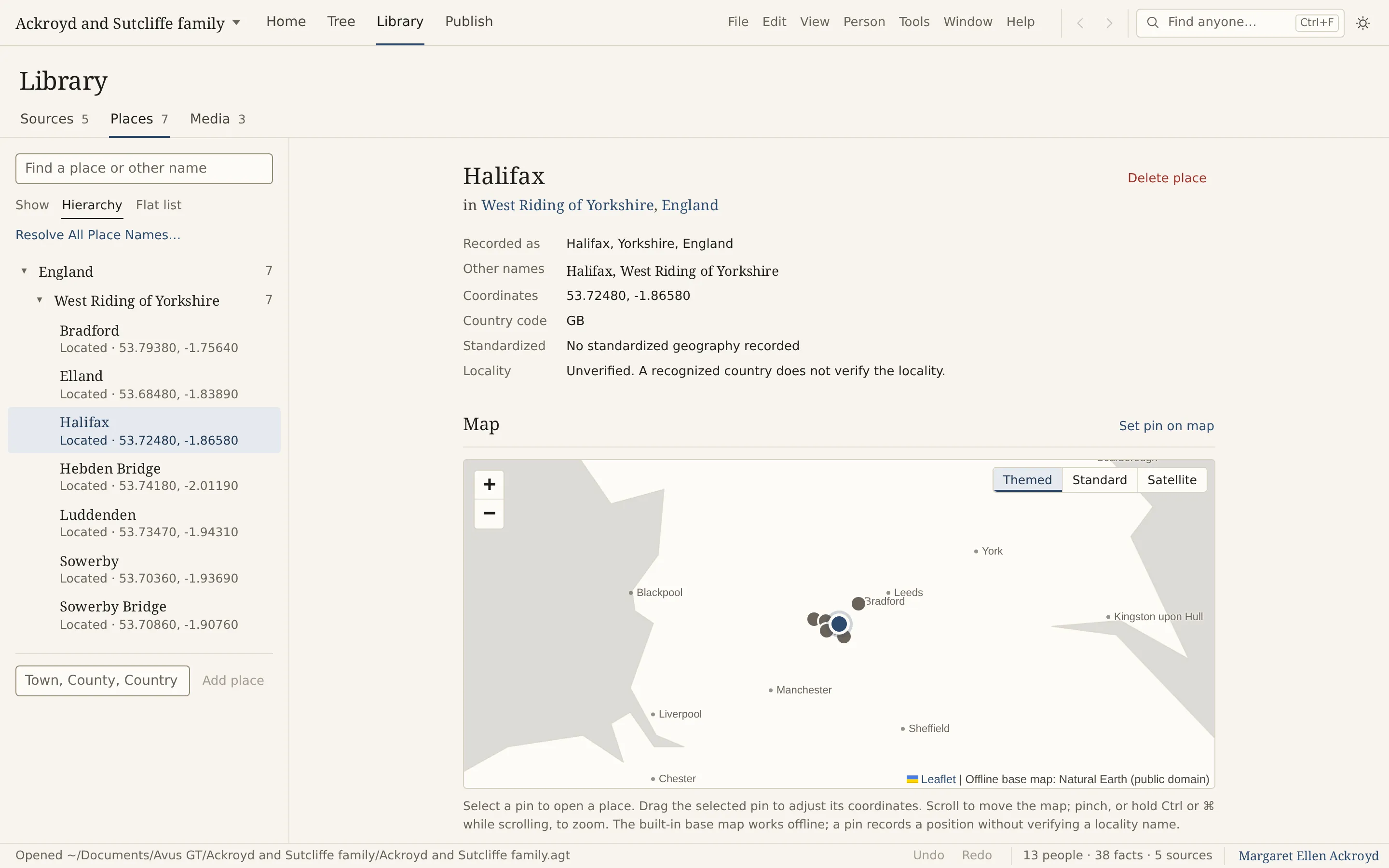
- Find a place or other name searches names and alternate names.
- Beside Show, Hierarchy groups places by country and region and Flat list lists every place alphabetically. Selecting a region shows the people and events in all the places within it.
- Each place shows whether it is located (has coordinates).
Add a place
- At the foot of the place list, type the name in the box marked Town, County, Country.
- Click Add place.
Write places from the most specific to the least, separated by commas. You usually don't need to add places here: typing one in a fact creates it.
Edit a place
Select a place to see its page: the name, the places it is in, other names, coordinates, and the people and events recorded there. To change it:
- Open Place details.
- Change the Original / historical place name, Short display name, Hierarchy, Alternate names (one per line), Latitude, Longitude or Country code.
- Click Save place.
The historical name you entered is always kept. A modern match from the built-in place list is stored alongside it as the standardized place.
Put a place on the map
Do one of the following, then click Save place to keep the position:
- Click Set pin on map, then click the map where the place is.
- Under Find coordinates by name, search a city, region or country by its historical or modern name, then click Use these coordinates on the right match.
- Drag the selected pin to adjust it.
If no town matches, Avus GT may offer the nearest known region or country as an approximate area. An approximate area is never saved automatically.
To locate many places at once, click Locate … unmapped places above the list. It looks for coordinates for each place in turn, starting with the built-in index of towns and villages, and you can click Stop at any time. Matches that need checking are marked for review rather than saved.
Map styles and online tiles
The switch on the map chooses a style:
- Themed
- The built-in map in the colours of your theme. It never uses the internet.
- Standard
- A plain light map. With online map tiles on, it shows the OpenStreetMap street map.
- Satellite
- Aerial imagery. It needs online map tiles.
Online map tiles are off until you tick Online map tiles (needs internet) below the map. When they are on, the map areas you look at are requested from the map provider. Scroll to move the map; pinch, or hold Ctrl while scrolling, to zoom.
Resolve all place names
- Choose Tools → Resolve All Place Names…, or click Resolve All Place Names… above the place list.
- Avus GT proposes a modern geography for each place, using its built-in list.
- Review the proposals. Tick Accept on the rows you agree with; unticked rows are rejected.
- Click Apply accepted proposals. They are applied as one step you can undo, and the historical names are kept.
Merge duplicate places
- Select the place you want to keep.
- Under Merge a duplicate into this place, choose the duplicate.
- Click Merge selected duplicate.
All facts that used the duplicate now use the kept place. If the kept place has no coordinates or country, they are copied from the duplicate; existing coordinates are kept. Undo restores both places. Later, Merge history at the foot of the list can Unmerge places.
Delete a place
Click Delete place on the place's page. Only a place that no fact uses can be deleted; merge it into another place first.
The Home country option and Check place names affect how places are checked as you type them.
Menus, labels and features of Avus GT may change in later versions.