User guide · Sharing and safety
Reports, charts and books
Create charts, reports and books from your tree, preview them page by page, and print them or save them as PDF.
Choose a publication
Click Publish in the top bar. The Collection tab lists every kind of publication, grouped into categories on the left: Charts, Genealogy Reports, Person Reports, Relationship Reports, Place Reports, Media Reports, Source Reports, Other and Books.
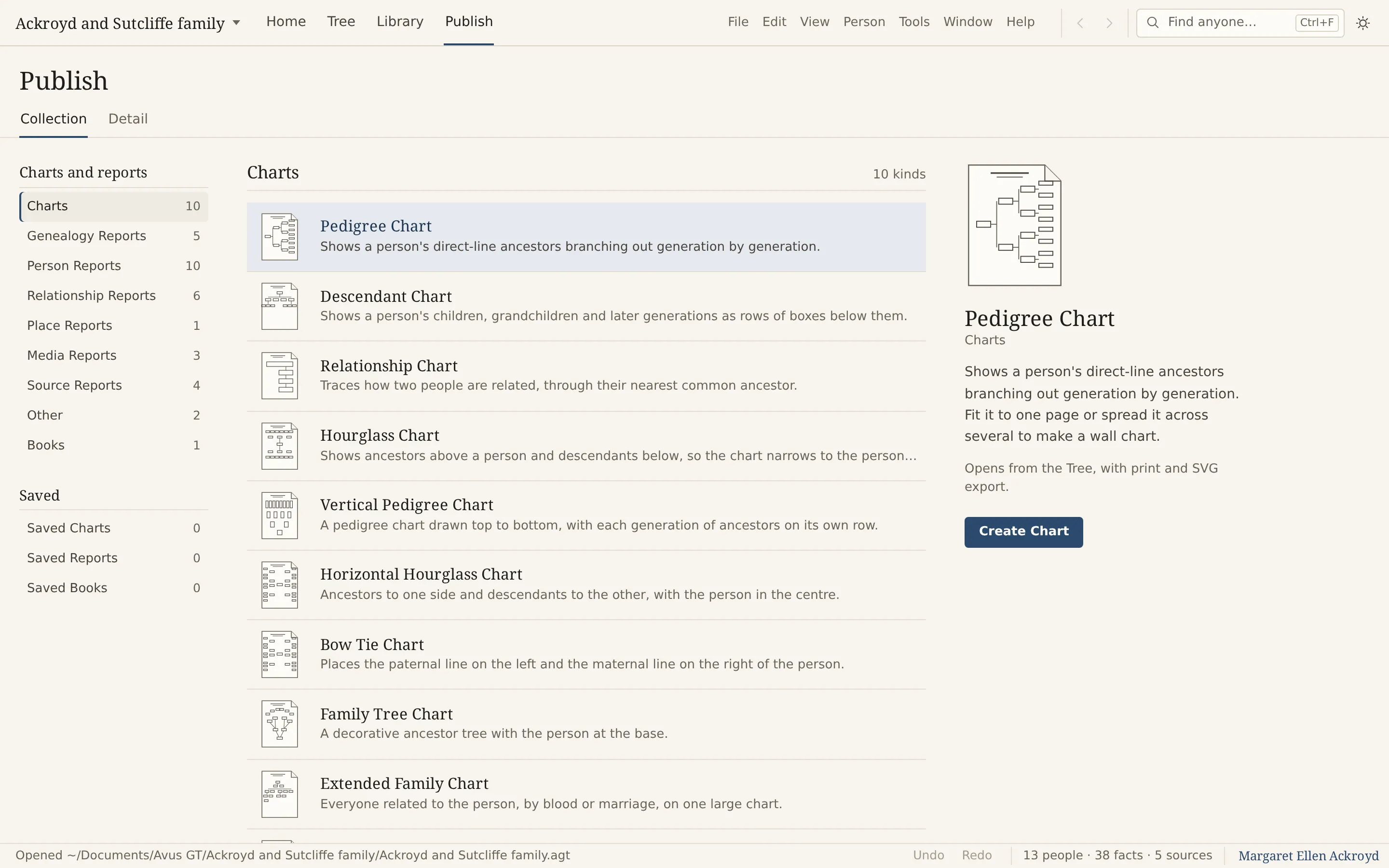
- Pick a category, then a publication. Its description appears on the right.
- Click Create Chart, Create Report or Create Book.
- The publication opens in a second tab named after it, with a preview and its settings.
What you can create
- Charts
- Pedigree, Descendant, Relationship, Hourglass, Vertical Pedigree, Horizontal Hourglass, Bow Tie, Family Tree, Extended Family and Fan charts. The Pedigree, Descendant and Fan charts open in the Tree in the matching view, where you can print or export them.
- Genealogy reports
- Ahnentafel Report, Descendant Report, Outline Ancestor Report, and LDS ordinance reports.
- Person reports
- Individual Report, Custom Report, Data Errors Report, List of Individuals Report, Index of Individuals, Notes Report, Surname Report, Task List, Timeline Report and Exact Duplicates Report.
- Relationship reports
- Family Group Sheet, Family View Report, Kinship Report, Marriage Report, Outline Descendant Report and Parentage Report.
- Place, media and source reports
- Place Usage Report; Media Item Report, Media Usage Report and Photo Album; Bibliography, Documented Facts, Undocumented Facts and Source Usage Report.
- Other
- Calendar (birthdays and anniversaries by month) and Detailed Changes Report (the full edit history).
- Books
- Combine pages, stories and saved reports and charts. See Books.
Reports
- Create a report, for example Person Reports → Individual Report → Create Report.
- In the settings on the right, choose the Person under Primary person.
- Set the Options, such as the format and what to include, and the Header / footer and page setup.
- Check the preview. The page count is shown above it, with zoom controls.
- Click Save PDF…, Print… or Export CSV….
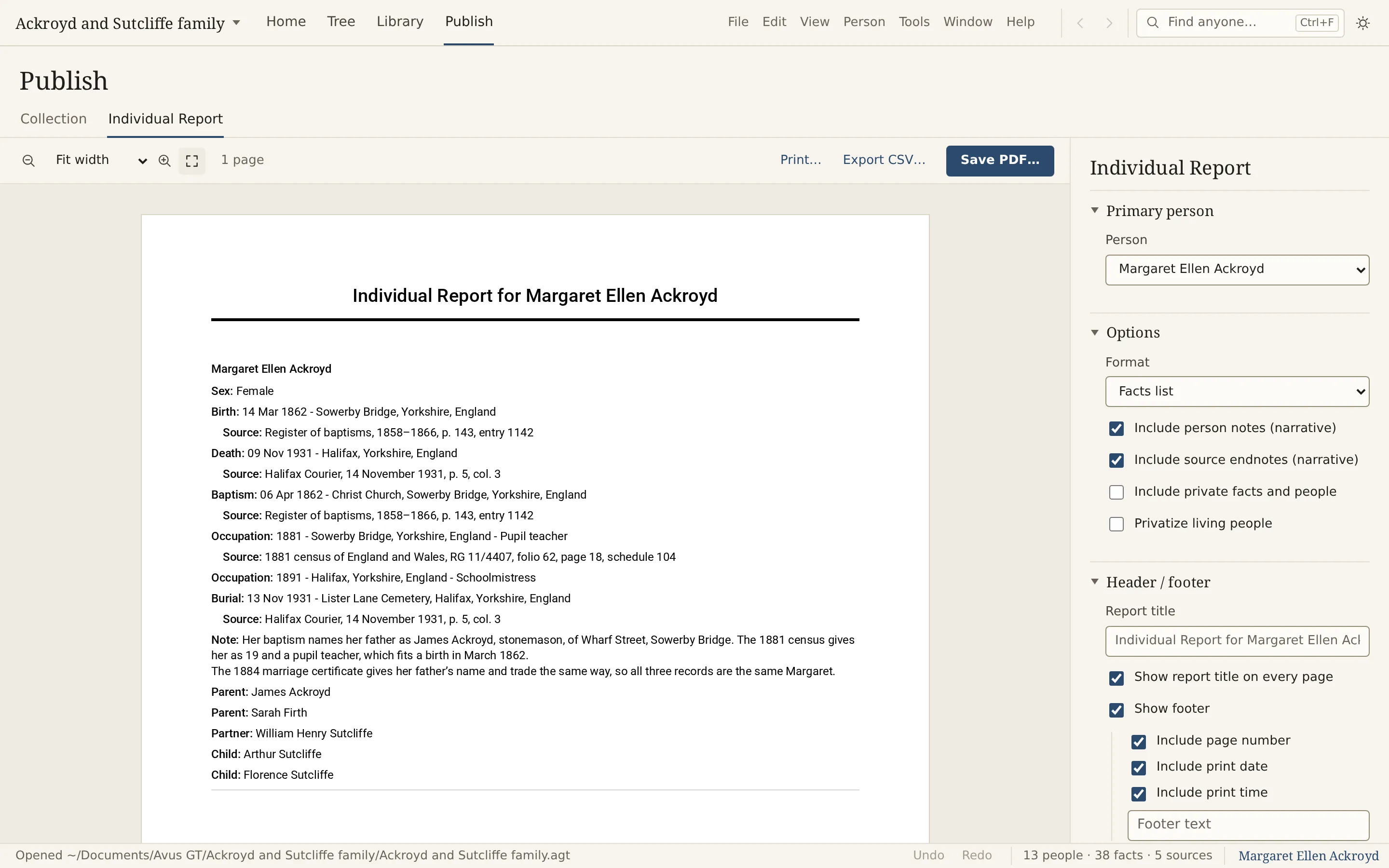
To keep a report's settings for later, choose Save Report; saved reports are listed under Saved in the Collection.
Charts
- Create a chart, for example Charts → Hourglass Chart → Create Chart.
- Choose the Primary person. A Relationship Chart asks for two people.
- Adjust the chart settings: title, spacing, generations, what each box shows, pictures, box and line styles, fonts, background and page setup.
- Click Save PDF…, Print…, Export PNG… or Export SVG….
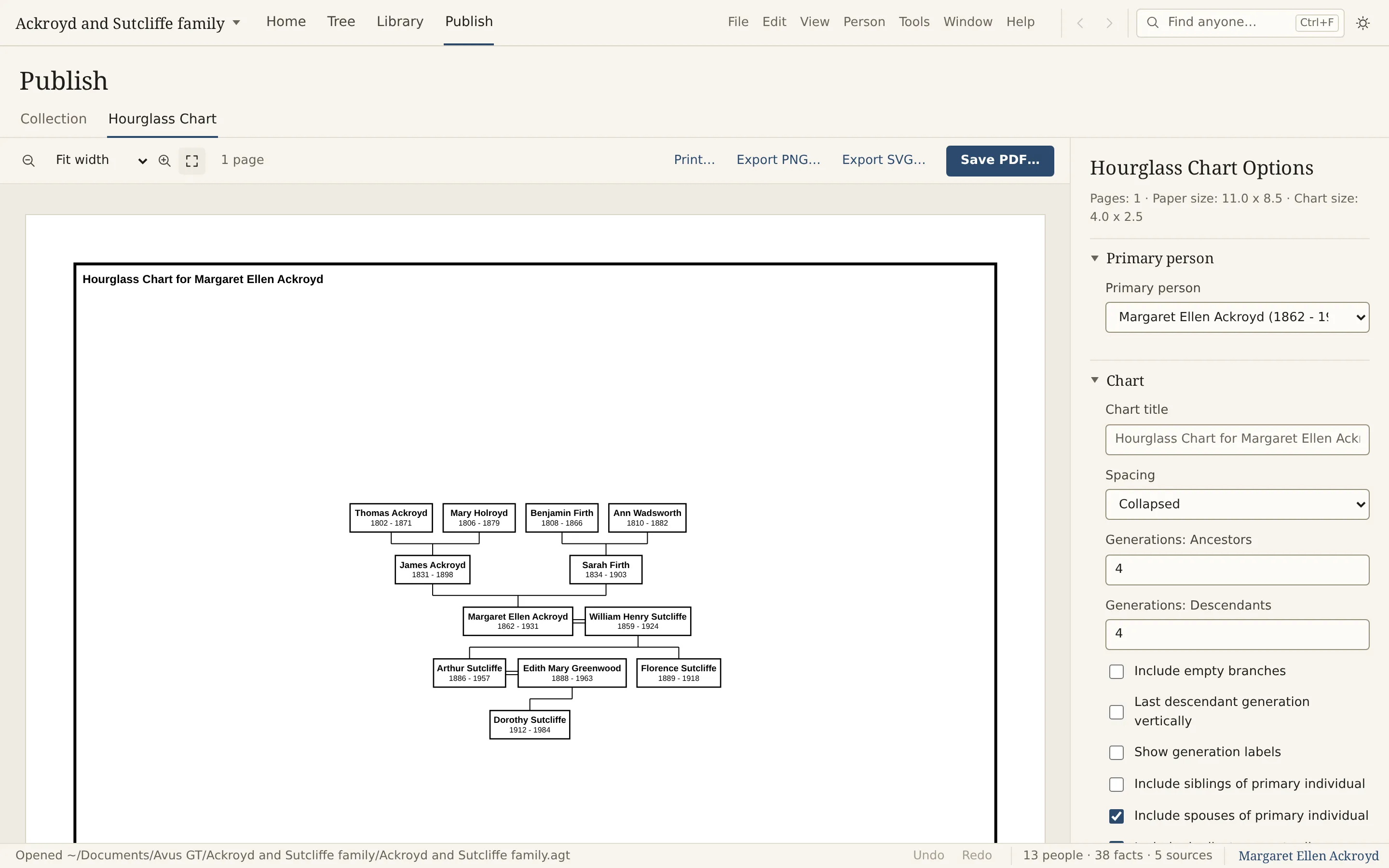
Under Page Setup, the layout can be Poster (actual size over several pages), Fit to one page or Book (generations per page). To keep the settings, choose Save Chart.
Books
- In the Collection, choose Books → Book Composer → Create Book.
- Give the book a Book name.
- Add items: Title page, Table of contents, Text page, Blank page, Placeholder page, Story, Picture or PDF, or a saved report or chart. Each item starts on a new page.
- Use Up, Down and Remove to arrange the outline.
- Set the privacy for the whole book and the page setup, header and footer.
- Click Save PDF… or Print…, and Save Book to keep it.
Text pages accept simple formatting: # headings, **bold**, *italic* and
- bullets. Tick Private item on a page that shouldn't be published. To include a
report or chart, save it first from its Detail view.
Privacy in publications
Reports, charts and books each have two privacy settings:
- Include private facts and people: off by default, so anything marked private is left out.
- Privatize living people: replaces people presumed to be living with “Living” or “Private”.
All publications and GEDCOM export use the same rule for who counts as living. See Who counts as living. A book warns you if one of its text pages names someone the privacy options hide.
Menus, labels and features of Avus GT may change in later versions.