User guide · Your family
Search and saved filters
Find a person, source or place quickly, change the same text in many records, and narrow the People list with filters you can save.
Find anyone
- Click Find anyone… in the top bar, or press Ctrl+F (Edit → Find…).
- Type at least two characters. Avus GT searches names, notes, facts, sources and places.
- Results are grouped under People, Sources and Places. Click one to open it. A person opens on their profile.
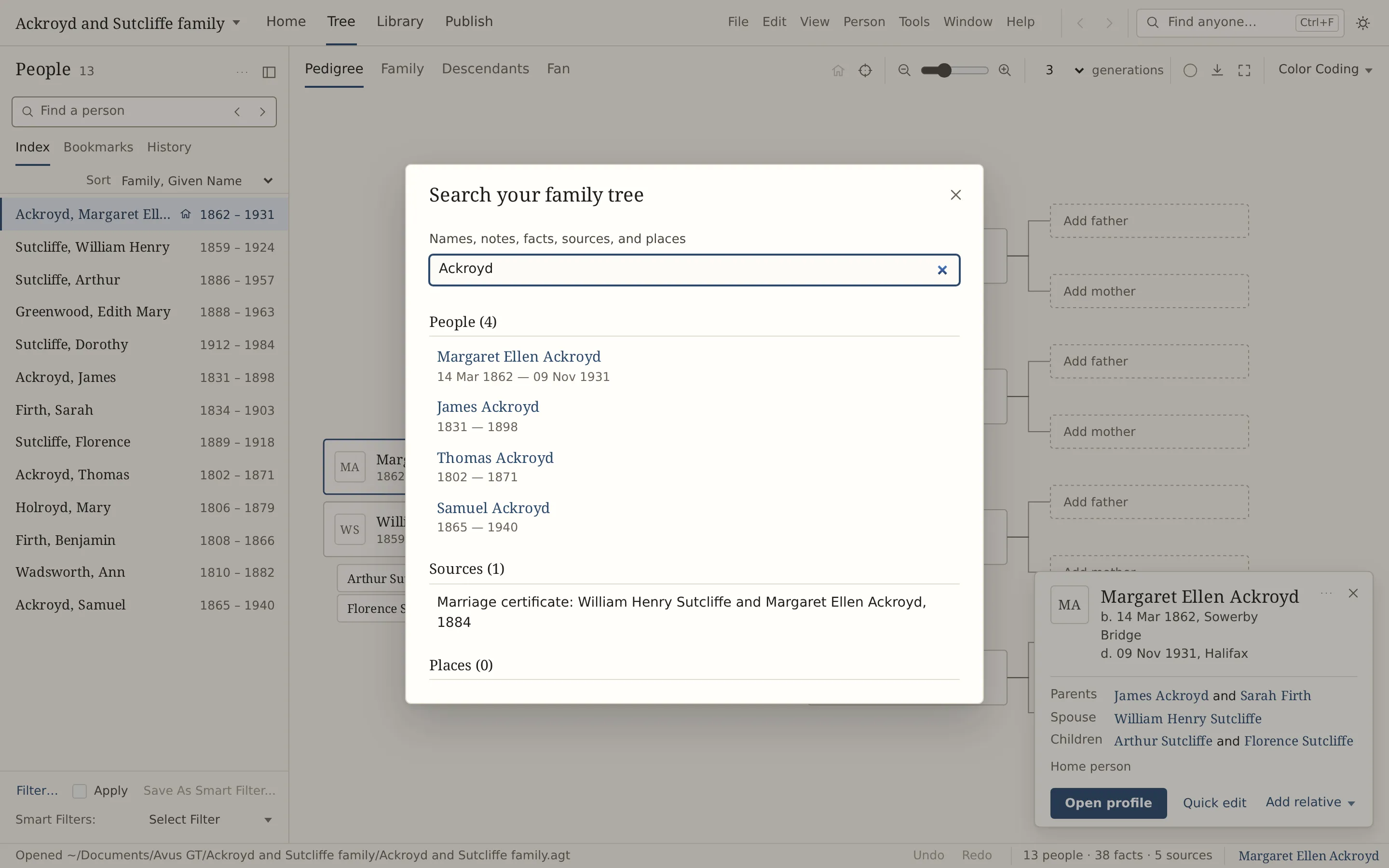
The command palette (Ctrl+K) also finds people by name. The Find a person box at the top of the People list searches the list itself.
Find someone by a fact
- Choose Edit → Find Individual….
- In Find Individual by, choose the fact to match, such as Birth Date or Death Date, and type what you are looking for.
- Select a result and click Locate in the Tree, or double-click it.
Find and replace
Use this to correct a misspelt place or surname everywhere at once.
- Choose Edit → Find and Replace….
- Type the text in Find and the new text in Replace with. Tick Match case or Whole words only if you need them.
- Under Search in, tick where to look: Given names, Surnames, Places, Fact descriptions, Notes or Source titles.
- Click Find. Each match is listed with its current and replacement text. Untick a row to leave it unchanged.
- Click Replace Selected or Replace All. The whole change is one step you can undo.
Filter the People list
A filter limits the People list to the people you choose: a family line, everyone born in a place, everyone without a death date, and so on. The filter controls are at the foot of the People list.
- Click Filter… at the foot of the People list.
- In the Filter Individuals dialog, build the filter from the buttons in the middle:
- Include / Exclude: add or remove the selected person.
- Include All / Exclude All: start from everyone or no one.
- Ancestors… and Descendants: add the selected person's line. Ancestors… lets you choose how many generations and whether to include parents, spouses and the ancestors' descendants.
- Filter In… / Filter Out…: add or remove everyone who matches a condition, such as a birth place that contains a word or a fact that does not exist.
- Retrieve Filter…: add the conditions of a saved filter.
- The list on the right shows who is in the filter. Show filter conditions lists each step, which you can reorder, edit or remove.
- Click Apply.
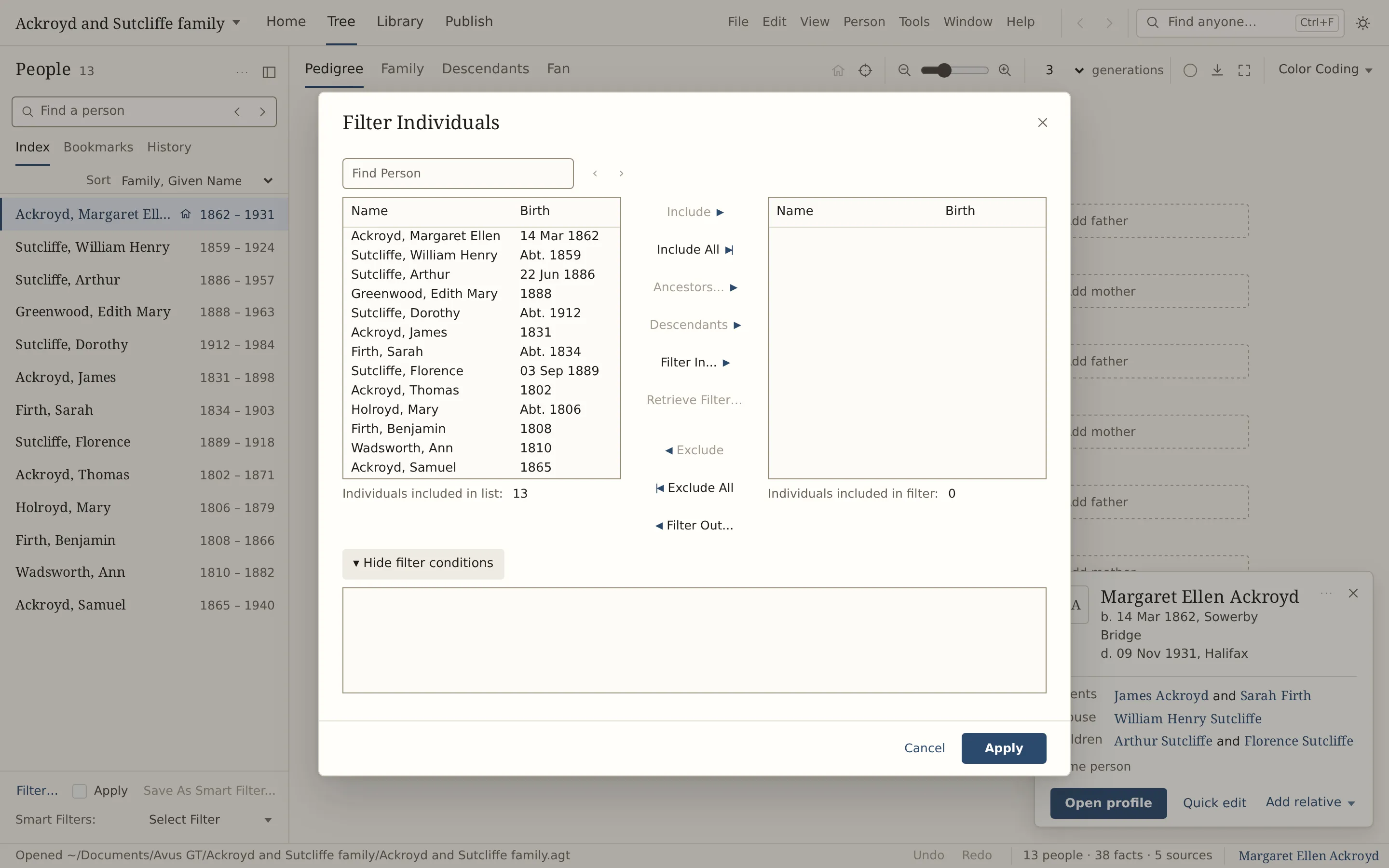
The Apply tick box at the foot of the People list turns the filter off and on without losing it.
Saved filters
Save a filter you will use again. Saved filters are kept with the tree, can have a colour in the People list, and can limit a GEDCOM export.
- Build and apply a filter as above.
- Click Save As Smart Filter….
- Give it a Name, choose a Color if you like, and save.
To use a saved filter, choose it from the Smart Filters menu below the Filter… button. No Filter shows everyone again. The same menu has New Filter…, Edit Filter… and Manage Filters…, where you can rename, duplicate and delete saved filters.
Menus, labels and features of Avus GT may change in later versions.