User guide · Sharing and safety
GEDCOM import, merge and export
GEDCOM is the standard file format for exchanging family trees. Use it to bring a tree into Avus GT, to add another researcher's file to yours, and to give a copy of your tree to someone else.
Avus GT reads and writes GEDCOM 5.5.1 and 7.0, in UTF-8, UTF-16 or ANSEL text. Information it doesn't recognise is kept with the tree and written back out when you export.
Import a GEDCOM file
Importing creates a new Avus GT tree from the file. The GEDCOM file itself is only read, never changed. If your tree is in another genealogy program, export it from that program as a GEDCOM file first.
- Choose File → Import GEDCOM…, or click Import… on the Home page. The Import a tree page opens, with four steps: Format, File, Preview and Import.
- Drag the GEDCOM file onto Drop a GEDCOM file here, or click Browse for a file…. You can also type the path in Source file and click Detect format and preview.
- Read the Preview. It names the file format and says how many people, families, sources, media items and notes the file holds, with any warnings.
- Under Import, check where the new tree will be saved. It must be a new file; the default is a new folder in Documents/Avus GT.
- Click Import, validate, and open tree. Large files can take a moment; keep the window open.
- When Migration complete appears, read the summary and any Warnings. Click Save report to keep a copy.
Pictures and documents that the file links to are copied into the new tree's media folder if they can be found on this computer. Missing files are listed in the report; you can relink them later with Find missing media….
Problems such as duplicate children or impossible ancestor loops are listed as warnings instead of stopping the import.
Merge a GEDCOM file into your tree
Merging adds everyone in another GEDCOM file to the open tree. Nothing already in your tree is changed.
- Choose File → Merge GEDCOM into This Tree….
- If Avus GT suggests backing up first, click Back Up Now. A merge adds many records at once.
- Choose the GEDCOM file.
- Click Merge. A summary says how many people, families, sources, media items and notes were added, and lists anything that could not be imported.
- People who were already in your tree now appear twice. Click Review possible duplicates… to merge them. See Find and merge duplicates.
The whole merge is a single step. To take it back, choose Edit → Undo. The reminder to back up can be turned off in Tools → Options… → Warnings.
Export a GEDCOM file
- Choose File → Export GEDCOM…, or click Export GEDCOM… on the Home page.
- Choose a New output file. Avus GT never writes over an existing file.
- Choose the GEDCOM version: 7.0, or 5.5.1 for programs that don't read 7.0 yet.
- Under People to export, choose Entire file, a Saved filter, or Selected individuals. With selected individuals you can also include all their ancestors, all their descendants and their spouses.
- Under Include, choose whether to export notes, sources and citations, and media links.
- For a copy you will share, tick Leave out records marked private and Privatize living people.
- Check the count (“Will export … people, … families and … sources”) and click Export GEDCOM.
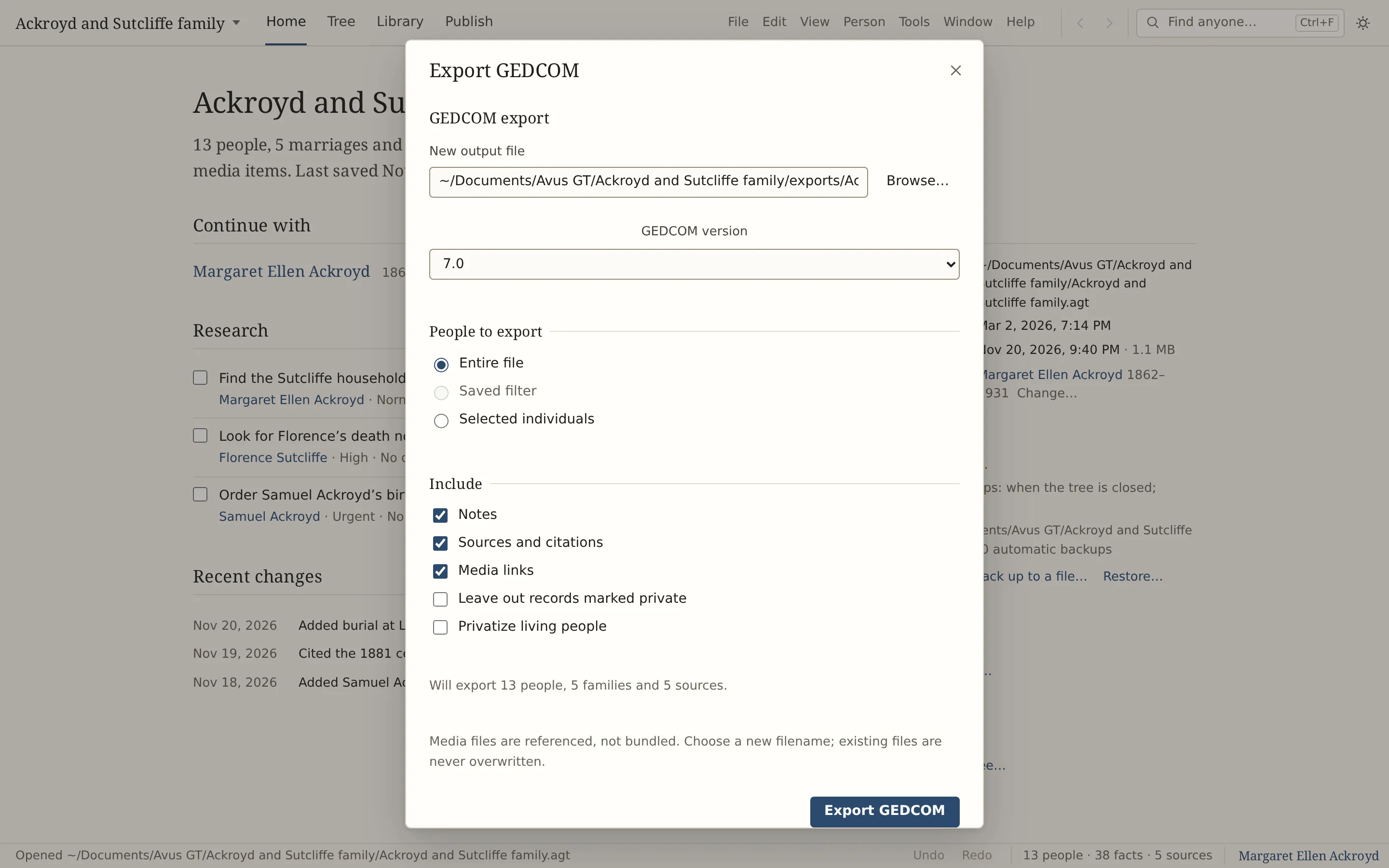
With Privatize living people, people presumed to be living are exported as “Living” with their surname only, and their facts, notes, sources and media are left out. The rule is described in Who counts as living.
Media files are referenced in the GEDCOM file, not included in it. Send the pictures separately if the recipient needs them. Your name and address from Tools → User Information… are written as the file's submitter.
Menus, labels and features of Avus GT may change in later versions.