User guide · Start here
Getting started
Download Avus GT, start a new tree or open one you already have, and add the first person.
Getting Avus GT
Avus GT is a free download for macOS (Apple silicon and Intel) and Windows 10 or 11 (64-bit). Go to the download page, download the file for your computer and open it.
The installers are not yet signed by Apple or Microsoft, so the first time you open Avus GT your computer asks you to confirm it. First time opening Avus GT shows what to click. After that, updates install from inside the app.
How trees are stored
Each family tree is one file on your own computer. New trees go in a folder called Documents/Avus GT unless you choose another place. Each tree gets its own folder, which also holds its copied media, backups and exports.
You don't need to save after every change. Avus GT stores each change in the tree file as soon as you make it. See Saving and undo.
Start a new tree
- Choose File → New Tree…, or press Ctrl+N. With no tree open, you can also click Start a new tree… on the welcome page.
- Type a Tree name.
- Check the file location below it. To choose another folder, click Browse….
- Click Create tree. The new, empty tree opens.
- Click Add the first person, enter a name and any dates you know, then click OK.
You can type dates the way you write them. For example, 4/12/20 becomes 04 Dec 2020 and
abt 1872 is kept as an approximate date. See
Entering dates.
To start from a GEDCOM file that another program exported, import it instead. See Import a GEDCOM file.
Open a tree
- File → Open… (Ctrl+O) opens a tree file. Click Browse… to find it, then Open tree.
- File → Open Recent lists the trees you opened lately. A tree that has been moved or deleted is marked “file not found”. Clear Menu empties the list.
- File → Tree Browser… lists the trees in your tree folder, with their size and status, so you can open one.
- File → Open in New Window… opens a second tree in its own window. Each window keeps its own tree and selection.
The tree name at the left of the top bar is also a menu. It holds Tree Browser…, New Tree…, Open…, Backup…, Restore Backup… and Close Tree.
By default Avus GT reopens the last tree when it starts. You can change this in Options.
The Home page
Home is the first destination in the top bar. It gives a summary of the open tree.
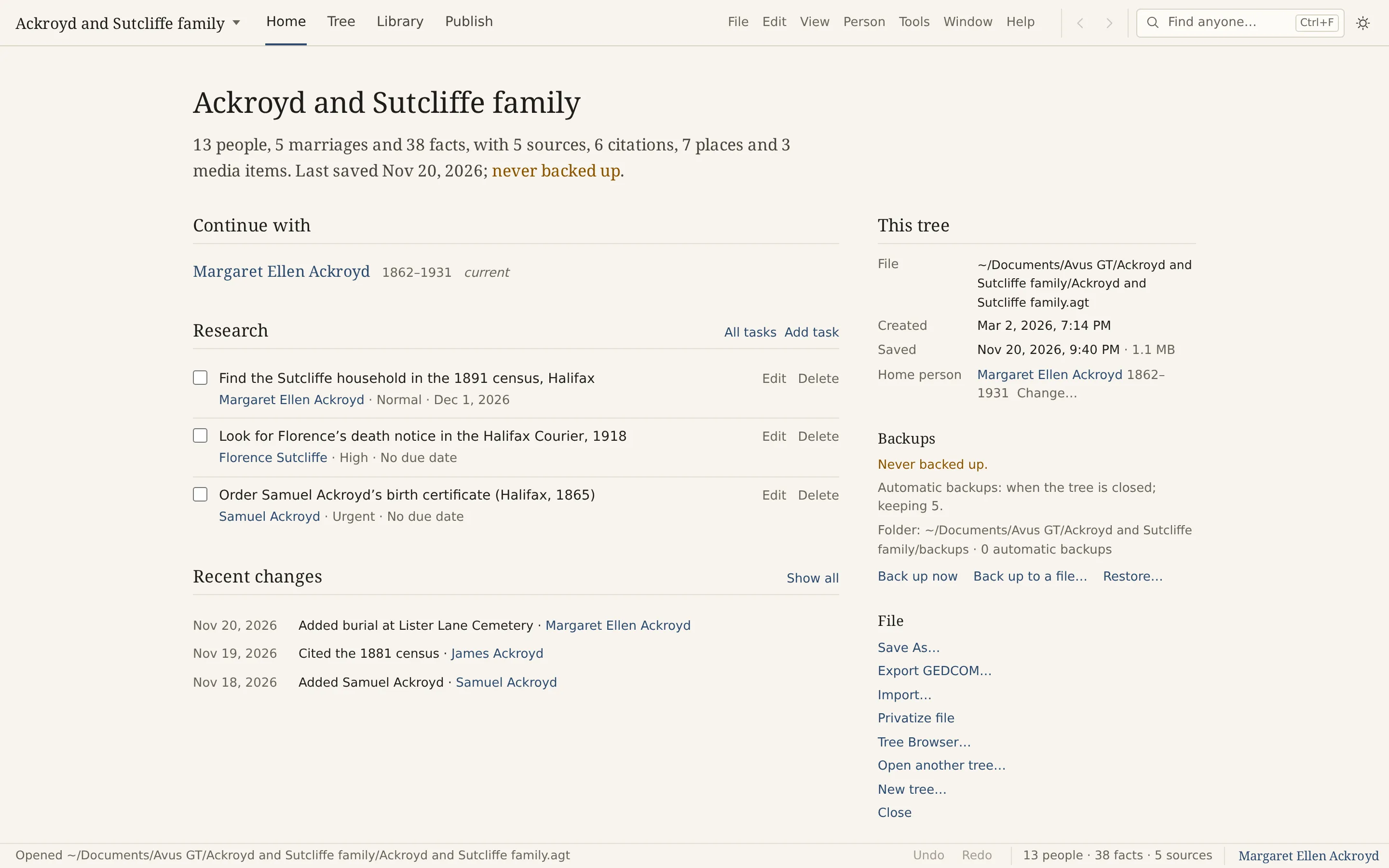
- Summary
- How many people, marriages, facts, sources, places and media items the tree holds, when it was last saved and when it was last backed up. “Never backed up” appears in a warning colour.
- Continue with
- The person you were looking at and others you opened recently. Click a name to open that profile.
- Research
- Open research tasks. All tasks opens the full list; Add task adds one.
- Recent changes
- The latest edits. Show all opens the complete change log.
- This tree
- The file, its dates and size, the home person (Change… picks another), backups, and links to file commands such as Save As…, Export GEDCOM…, Import… and Close.
Close a tree
Choose File → Close Tree. If automatic backups are set to run when a tree is closed, Avus GT makes one then.
Menus, labels and features of Avus GT may change in later versions.