User guide · Evidence and records
Media and portraits
Add photographs, scans and documents, link them to people, facts and sources, choose portraits, and fix files that have moved.
Library › Media
Click Library in the top bar, then Media. The Collection view shows every media item in the tree as a captioned grid.
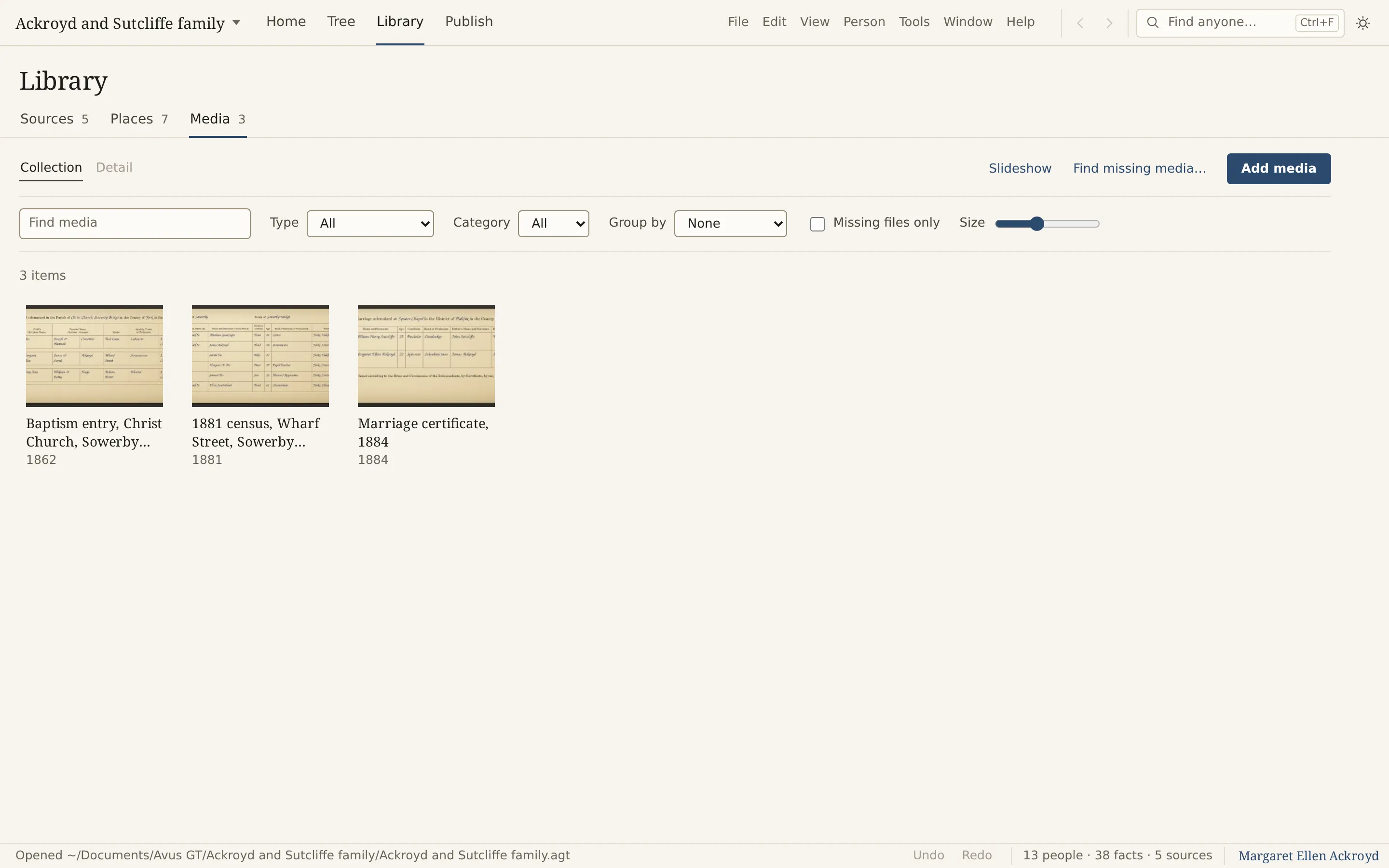
The filter row narrows the grid:
- Find media: search captions and file names.
- Type: photos, audio, video or documents.
- Category, and Group by to group the grid.
- Missing files only: show items whose file can't be found.
- Size: the thumbnail size.
Add a media file
- In Library › Media, click Add media.
- Choose the file in Source file path.
- Type a Caption.
- To link it straight away, choose a record in Evidence supports. If you leave it empty the item is added unlinked.
- Click Copy and add file. The file is copied into the tree's media folder; your original stays where it was.
To add media to one person, open their profile and click Add media in the Media section. In edit mode you can link, unlink and choose a portrait there.
Set a portrait
- Open the person's profile and click Edit.
- Click the portrait (or the empty frame) at the top left.
- Choose Add New Picture… to add a file, or Link to Existing Picture… to pick one from the media collection.
Remove Picture takes the portrait off without deleting the media item. Portraits also appear on cards in the tree and the summary card.
Edit a media item
Double-click an item, or select it and click Detail. Previous and next buttons move through the collection. The detail view shows:
- The file and where it is stored, and whether it is Private.
- Categories. Click Edit and type one category per line; a new name creates that category.
- Linked to: the people and records the item is attached to. Unlinking removes only the link; the item and its file stay.
- Notes, and Web links and tasks.
- Edit caption, date and file: the caption, description, date and the Private tick box.
Rotate and crop
In the detail view, use Rotate left, Rotate right and Crop, then save. Reset image edits restores the original appearance. These edits change how the picture is shown; the original file is not altered.
Slideshow
Click Slideshow to play the photos that match the current filters. Use the previous, play or pause, and next buttons, and set the seconds per slide.
Repair missing files
If you moved or renamed a folder of pictures, Avus GT can find them again.
- Click Find missing media….
- Choose the Replacement folder where the files now are.
- Check the proposed matches. A match is marked when its contents are confirmed to be the same, or when it only matches by file name. Choose the right file where several share a name.
- Accept the matches you want. Links and details are kept, and Undo restores the old paths.
For a single item, use Find missing media… in its detail view.
Menus, labels and features of Avus GT may change in later versions.