User guide · Your family
Tree views and colour coding
Look at the family as a pedigree, a family group, a descendant tree or a fan, and colour lines of descent.
The four views
Click Tree in the top bar. The text tabs above the drawing switch the view:
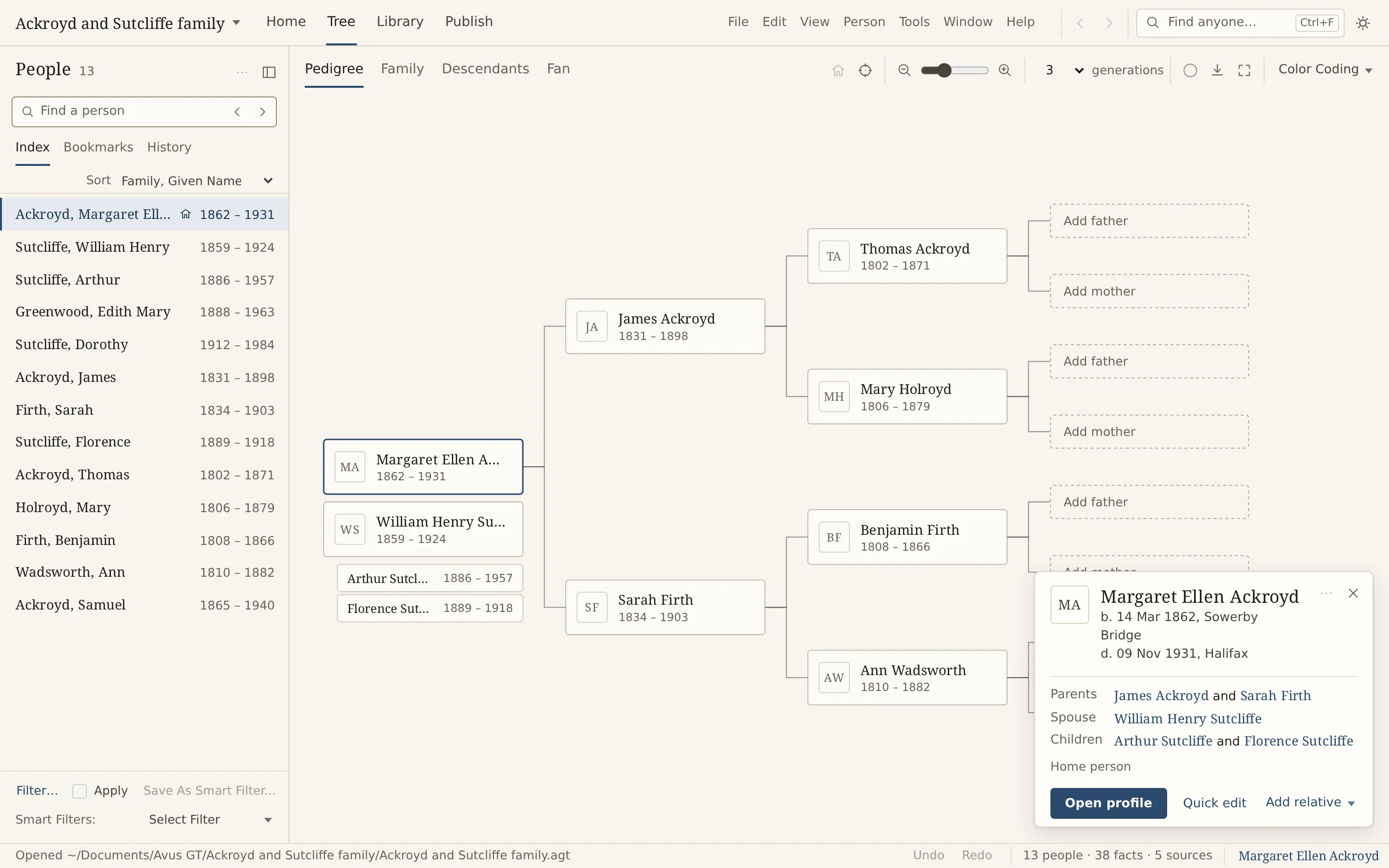
- Pedigree
- The selected person on the left and their ancestors branching out to the right.
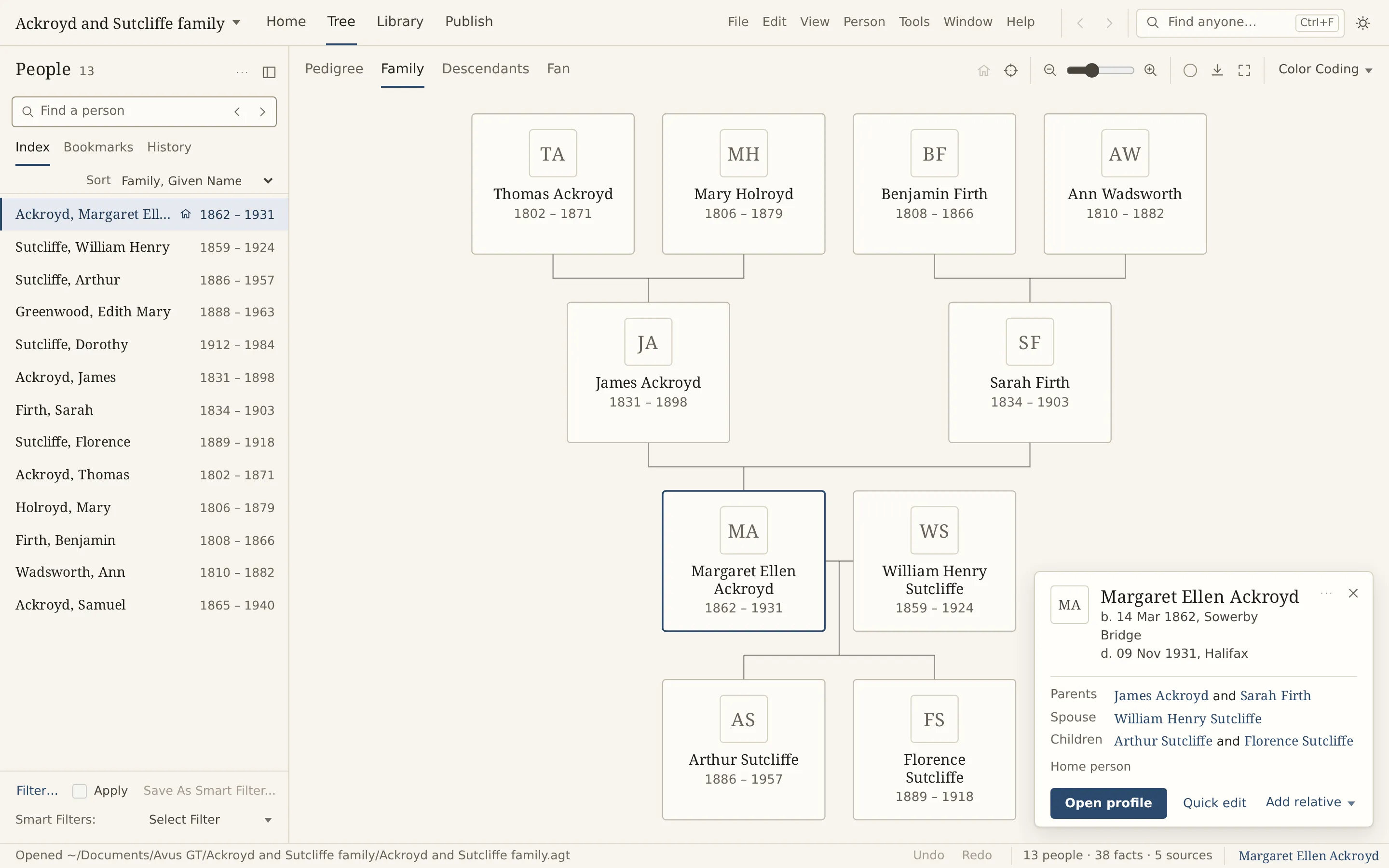
- Family
- The person and their spouse, their parents above and their children below.
- Descendants
- The person's children, grandchildren and later generations.
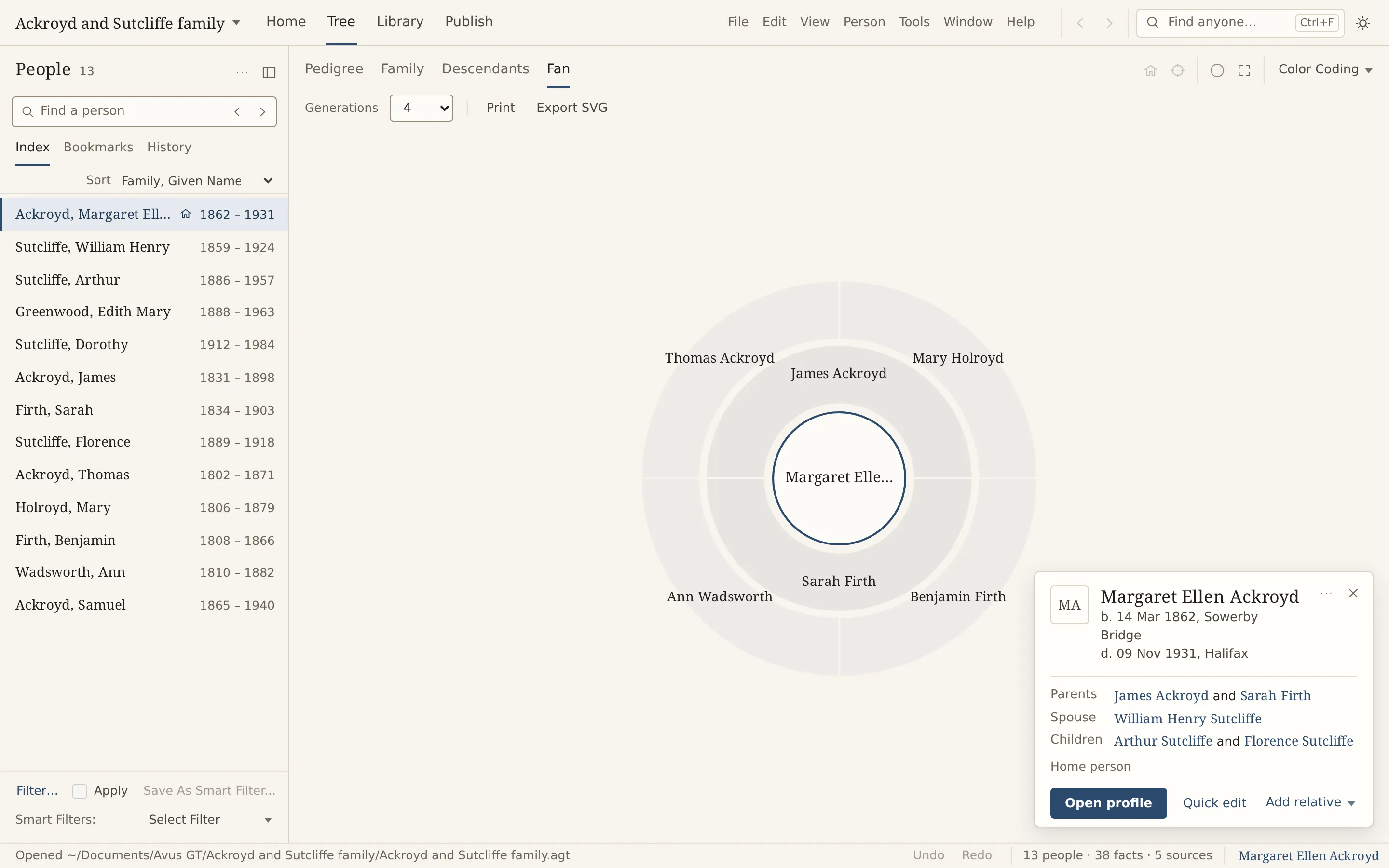
- Fan
- Ancestors arranged in rings around the person. Choose how many Generations to show; Print and Export SVG are beside it.
Move around the tree
- Click a card to select that person. The summary card shows their family.
- Double-click a card, or press Enter on it, to open the profile.
- Drag to move the drawing, and scroll to zoom.
- Click a dashed Add father or Add mother box to add that parent.
The tool group at the right of the tabs has, from left to right:
- Go to home person (the house).
- Re-center on selected person.
- Zoom out, a zoom slider and Zoom in.
- The number of generations shown.
- Change background color: paper, white or shaded.
- Export SVG: saves the view exactly as shown. For output that hides living people, use Publish instead.
- Enlarge panel: give the drawing the whole window. Click again to restore.
- Color Coding.
To hide the summary card, click its close button. Click a card to bring it back. To change which details the quick editor shows, choose Customize View… from the card's … menu.
Colour coding
Colour coding marks people in the tree and the People list so you can see a line at a glance.
- Select the person in the tree.
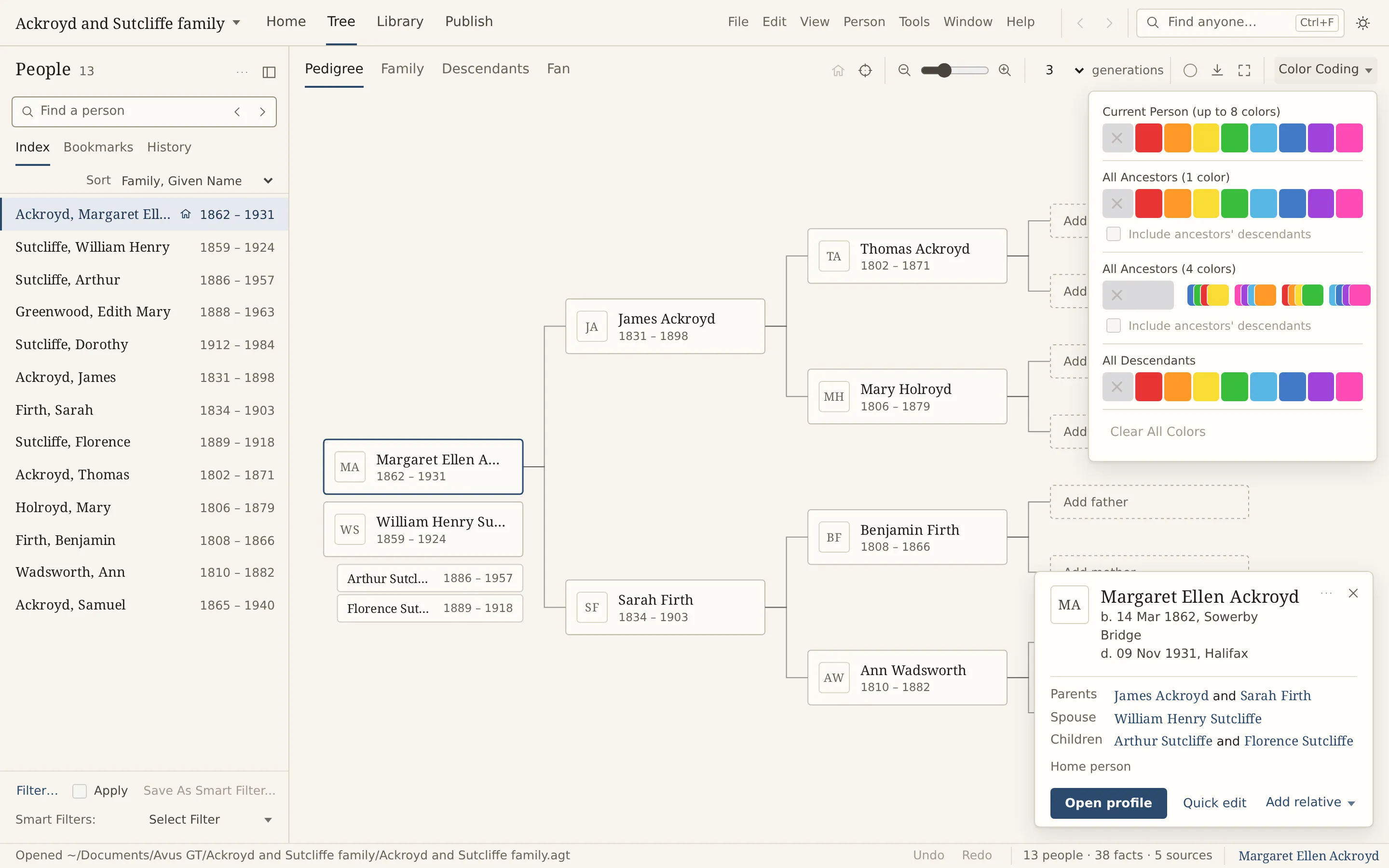
- Click Color Coding at the end of the tree's tool group, or on the person's profile.
- Pick a colour in one of the rows:
- Current Person (up to 8 colors): colours this person only.
- All Ancestors (1 color): colours all their ancestors. Tick Include ancestors' descendants to include those lines too.
- All Ancestors (4 colors): a different colour for each grandparent's line.
- All Descendants: colours everyone descended from the person.
- To remove colours, pick the crossed-out swatch in a row, or click Clear All Colors.
Saved filters can carry a colour too. See Saved filters.
Printing a tree
For printed and PDF pedigree, descendant and fan charts with options for size, boxes and privacy, use Publish. Creating a Pedigree, Descendant or Fan Chart there opens the matching view here.
Menus, labels and features of Avus GT may change in later versions.