User guide · Reference
Options
Change how Avus GT looks, where it keeps files, how it backs up, how dates and names are shown, and which warnings it gives.
Choose Tools → Options… (Ctrl+,). The categories are on the left: General, Dates/Names/Places and Warnings. Click OK to keep your changes. Cancel or Esc saves nothing.
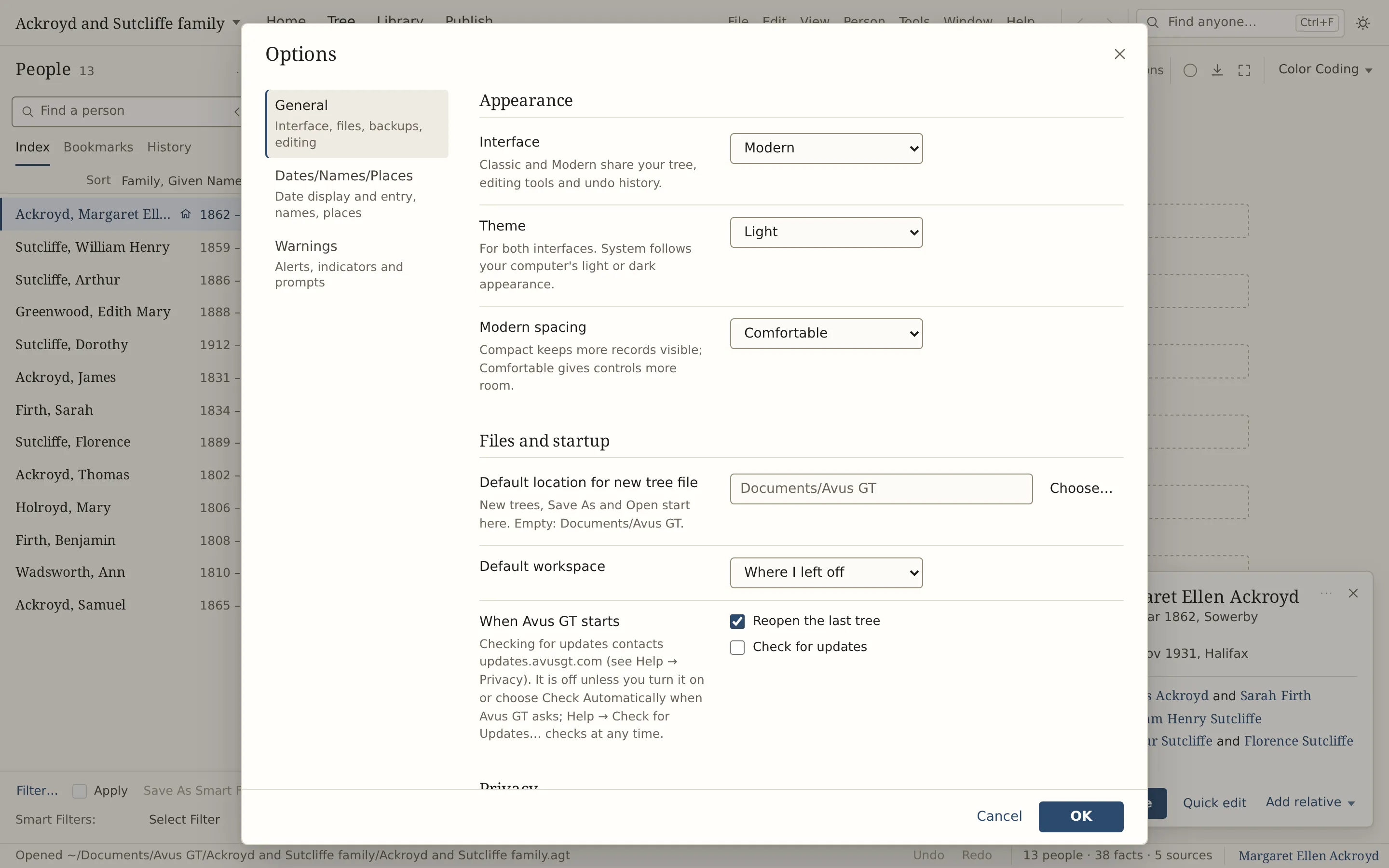
Most options are saved for you on this computer. A few belong to the tree itself and say “Saved with this tree”; those need a tree to be open.
General
Appearance
- Interface
- Modern or Classic. See Switching between Modern and Classic.
- Theme
- System, Light, Dark, Sepia, Slate, High Contrast Light or High Contrast Dark.
- Modern spacing
- Comfortable or Compact.
Files and startup
- Default location for new tree file
- Where New Tree, Save As and Open start. Empty means Documents/Avus GT.
- Default workspace
- What to show when a tree opens: Where I left off, or a fixed place such as Plan (Home) or People (Tree).
- When Avus GT starts
- Reopen the last tree.
Backups
Backup tree file turns on automatic backups and sets when they run, how many to keep, whether to include media and the backup folder. See Automatic backups.
Editing and display
- When entering place name
- Check place names: checks the country against the built-in list and tidies the place when you leave the field. Off keeps the place as typed.
- Upon death of either spouse
- Change relationship status to Deceased: when a death is entered, that person's Ongoing relationships become Deceased in the same change.
- Portrait
- Crop to make picture fit the frame.
- Use fastfields for
- Suggest earlier entries while you type a Name, Source title, Place or Description.
- Display data linked to fact
- Show a fact's Media and Notes under its fields in the fact editor.
- Display media
- With caption instead of filename.
Dates, names and places
Dates
- Date display format
- The order of day, month and year, how the day and month are written, and the separator. An example date shows the result.
- Date input format
- How numbers you type are read. With day, month, year,
4/12/1920is 04 Dec 1920. A date typed with a month name is never ambiguous. - Double dates cutoff year
- Usually 1752 (1582 outside Britain and its colonies); 0 turns it off. A date you type between 1 January and 24 March of an earlier year is given both years, such as 1718/19. This setting is saved with the tree.
- Ancient date notation
- B.C. & A.D. or BCE & CE: the suffix for years before Christ, and for years before 100 so they can't be mistaken for a day.
- Fact labels
- The words shown before qualified dates on screen and in reports: About, Before, After, Between, Estimated and Calculated.
Changing how dates are shown never changes the dates stored in your tree.
Names
Name index options change how the People list shows names: Use AKA if available after middle name, Use AKA if available as an additional entry, Use titles if available, Use married name for females and Show family names in capitals. Stored names are not changed.
Places
Home country is the country you research most. Choose one, such as England, Canada or Germany, or None.
Warnings
- Warnings
- Show for non-critical errors: dates that clash with parents' or children's records, such as a child born after a parent died.
- Alerts
- Show for unlikely birth, death and marriage dates, which turns on the Check this date prompt, and Show information alerts, such as how an ambiguous numeric date was read.
- Indicators
- Show unrecognized place name: marks a place whose country is not in the built-in list.
- Prompts
- Show when sorting children in the family view and Show backup reminder before critical operations, such as a GEDCOM merge.
- Limits
- The ages the date warnings use: Age at death over, Parent younger than, Mother older than, Father older than and Married younger than.
Settings that don't work yet say “Not yet available.”
Menus, labels and features of Avus GT may change in later versions.